
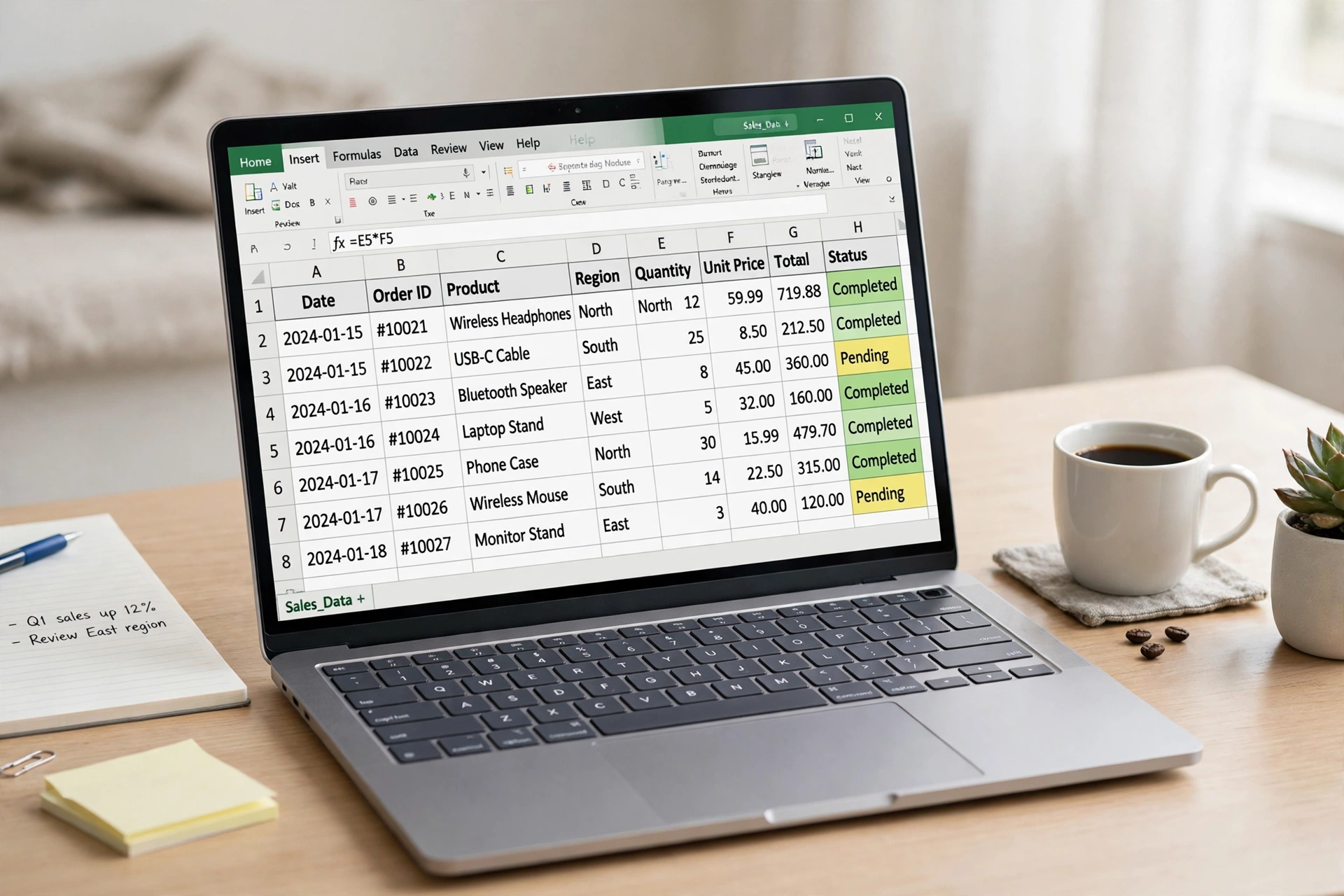
How to Remove Duplicates in Excel: An Easy Guide for Clean Data
Quick answer: how to remove duplicates in excel
Yes, Excel has a built in tool that removes duplicate rows in seconds, and you do not need a formula to use it. To learn how to remove duplicates in excel the easy way, click any cell in your data, go to the Data tab, click Remove Duplicates, pick the columns to check, and click OK. The full guide below shows you how to remove duplicates in excel step by step, with the button method, a formula method, and a shortcut, so your lists come out clean and ready to use.
What Does Remove Duplicates Do?
Remove Duplicates finds rows that are the same and deletes the extra copies. It keeps the first copy of each row and deletes the rest. For example, if your customer list has “Sara Lee” three times, Excel keeps the first Sara Lee and deletes the other two. This tool is useful for email lists, sales data, class lists, and any table where the same row shows up more than once. When you learn how to remove duplicates in excel, you save hours of manual checking, and your data becomes clean and safe to use. That is the main reason to learn how to remove duplicates in excel: it turns a long boring job into a 10 second job. For more easy tech guides, browse our Tech and Computers tips. See Microsoft’s official guide.
What Do You Need?
You do not need much to learn how to remove duplicates in excel. Here is the full list.
- Microsoft Excel, any new version, or Excel online
- Your data in a table with headers, such as Name, Email, and City
- A copy of your file, so you can undo mistakes
With these tools, you are ready to learn how to remove duplicates in excel today. – 5 minutes of time
How to Remove Duplicates in Excel in 5 Easy Steps
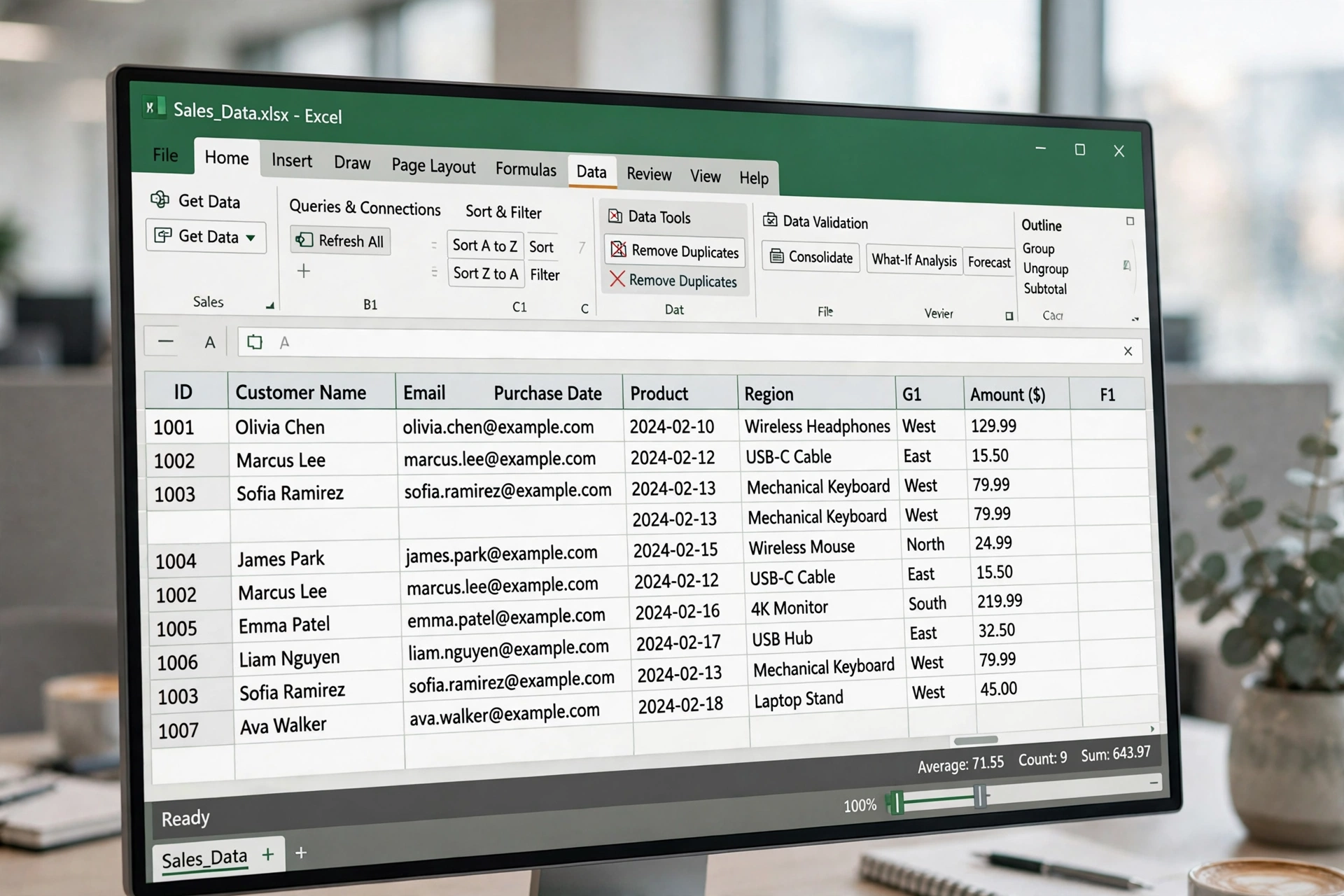
This is the full button method for how to remove duplicates in excel. It works in Excel for Windows, Mac, and Excel online. Read the steps once, then start.
Step 1: Make a Copy of Your File
Before you remove anything, save a copy of your file. Click File, then Save As, and save it with a new name, such as “my list backup”. This way, if you remove the wrong rows, you can open the backup and start again. This step takes 10 seconds and it can save you hours. It is the first step in how to remove duplicates in excel safely.
Step 2: Click Any Cell in Your Data
Click any cell inside your table. You do not need to select the whole table, because Excel will find the full table on its own. Make sure your data has a header row at the top, such as Name, Email, and City. Headers help Excel know what each column means. This small detail matters when you learn how to remove duplicates in excel, because Excel uses headers to show you the right columns.
Step 3: Go to the Data Tab
Click the Data tab at the top of Excel. In the Data Tools group, you will see a button called Remove Duplicates. It has an icon with two columns and a red X. Click it, and a small window will open. This window is where how to remove duplicates in excel really happens.
Step 4: Pick the Columns to Check
In the window, Excel shows a list of your columns with a check mark next to each one. If all columns are checked, Excel will remove rows only when the whole row is the same. If you check only one column, such as Email, Excel will remove rows when the email is the same, even if the other cells are different. Pick the columns that make sense for your list. This choice is the most important part of how to remove duplicates in excel, because it decides which rows Excel deletes. If your data has headers, make sure the box “My data has headers” is checked.
Step 5: Click OK and Check the Result
Click OK. Excel will remove the duplicate rows and show a small message that tells you how many rows it removed and how many are left. For example, it may say “5 duplicate values found and removed, 95 unique values remain.” Check your list to make sure the right rows are gone. If something looks wrong, press Ctrl plus Z to undo, and try again with different columns checked. That check is the last step in how to remove duplicates in excel the safe way.
How to Remove Duplicates in Excel With a Formula

If you want to keep your old data and make a clean copy in a new place, use a formula instead of the button. The UNIQUE function does this job. Type this formula in a new cell: =UNIQUE(A2:C100). Replace A2:C100 with your own data range. Press Enter, and Excel will show a new list with no duplicates. The old data stays as it is, and the new list updates on its own when you change the old data. This method works in Excel 365 and Excel 2021. If you have an older version of Excel, use the button method above instead. This is the best remove duplicates excel formula for most people, because it is short, safe, and it keeps your old data.
How to Remove Duplicates in Excel Without Deleting
Sometimes you want to see the duplicates first before you delete them. Here is how to remove duplicates in excel without deleting anything. First, select your data. Then go to the Home tab, click Conditional Formatting, click Highlight Cells Rules, and click Duplicate Values. Excel will color all the duplicate cells, so you can see them. Now you can check each one by hand and delete only the ones you want to remove. You can also use a filter: select your data, go to the Data tab, click Advanced Filter, and choose “Unique records only.” This shows you only the unique rows, but it does not delete anything. These methods are great when you are not sure which rows are safe to delete. They show you how to remove duplicates in excel without deleting anything by mistake.
How to Find Duplicates in Excel
Before you remove duplicates, you may want to find them first. Here are three easy ways to learn how to find duplicates in excel.
- Conditional Formatting: select your data, go to Home, click Conditional Formatting, click Highlight Cells Rules, and click Duplicate Values. Excel colors the duplicates for you.
- COUNTIF formula: in a helper column, type =COUNTIF($A$2:$A$100, A2) and copy it down. Any row with a number bigger than 1 is a duplicate.
- Sort and look: sort your data by the column you want to check, and the duplicates will sit next to each other, so you can see them with ease.
Once you know where the duplicates are, you can use the Remove Duplicates button to delete them, or delete them by hand if you want more control. Finding them first is the smart way to learn how to remove duplicates in excel.
Remove Duplicates in Excel Shortcut
If you use Excel a lot, a shortcut will save you time. Here is the remove duplicates in excel shortcut. Click any cell in your data, then press Alt, then A, then M. This opens the Remove Duplicates window right away. Then press Enter to confirm. That is the whole shortcut: Alt plus A plus M, then Enter. You can also press Alt plus A plus M, pick your columns with the arrow keys, and press Enter. With a little practice, you can clean a whole list in under 10 seconds.
How to Remove Duplicates in Excel From One Column
Sometimes you only care about one column, such as Email or Phone. Here is how to remove duplicates in excel from one column. Click any cell in your data, go to the Data tab, and click Remove Duplicates. In the window, uncheck all columns, then check only the one column you care about. Click OK. Excel will keep the first row for each value in that column and delete the rest. Be careful with this method, because it deletes whole rows, not just the cells in that column. That is the key warning for how to remove duplicates in excel from one column. If you only want to clear the duplicate cells in one column, use the formula method or delete them by hand instead.
How to Remove Duplicate Values in Excel and Keep the Last One
By default, Excel keeps the first copy and deletes the later ones. If you want to keep the last copy instead, you need a small trick. Sort your data in reverse order first, so the last copy becomes the first. Then use the Remove Duplicates button as normal. Excel will keep what is now the first copy, which was the last one before you sorted. After that, sort your data back to its normal order. This trick works well for lists where the newest entry is the one you want to keep. If you want to know how to remove duplicate values in excel and keep the newest row, this sort trick is the easiest way to do it.
Mistakes to Avoid When You Remove Duplicates
Many people make these mistakes when they learn how to remove duplicates in excel. Avoid them and your data will stay safe, because knowing how to remove duplicates in excel is mostly about avoiding these mistakes.
- Not making a backup copy before you start
- Checking the wrong columns, which can delete rows you wanted to keep
- Forgetting to check “My data has headers,” which can delete your header row
- Removing duplicates from a list with blank rows, which can break the table
- Using Remove Duplicates on data with extra spaces, because “Sara” and “Sara ” look the same but Excel sees them as different
- Deleting duplicates before you check them with Conditional Formatting
- Working on the only copy of your file instead of a backup
How to Remove Duplicates in Excel: Quick Checklist

Use this checklist every time you clean a list. It covers each step of how to remove duplicates in excel in one short list.
- Make a backup copy of your file.
- Click any cell in your data.
- Go to the Data tab and click Remove Duplicates.
- Pick the columns to check and confirm headers.
- Click OK and read the message about removed rows.
- Check your list and press Ctrl plus Z if something looks wrong.
- Save your file with a new name.
Frequently Asked Questions
How do I remove duplicates in Excel without a formula?
Click any cell in your data, go to the Data tab, and click Remove Duplicates. Pick the columns to check, make sure “My data has headers” is checked, and click OK. Excel will remove the extra rows and tell you how many it removed.
Why does Excel say no duplicates were found?
Excel may say no duplicates were found if your data has extra spaces, different capital letters, or numbers stored as text. Use the TRIM function to remove extra spaces, and check that your numbers are all the same type. Then try again.
Can I remove duplicates from only one column?
Yes, click any cell in your data, go to the Data tab, and click Remove Duplicates. Uncheck all columns, then check only the one column you care about, and click OK. Excel will keep the first row for each value in that column and delete the rest.
Does Remove Duplicates keep the first or the last copy?
Excel keeps the first copy and deletes the later ones. If you want to keep the last copy, sort your data in reverse order first, then use Remove Duplicates, then sort it back to normal order.
How do I remove duplicates in Excel online?
Excel online has the same Remove Duplicates button on the Data tab. Click any cell in your data, go to Data, click Remove Duplicates, pick your columns, and click OK. The UNIQUE function also works in Excel online.
Can I undo Remove Duplicates?
Yes, press Ctrl plus Z right after you remove duplicates, and Excel will bring the rows back. That is why it is smart to make a backup copy first, so you can always start again if you need to.
Related Guides You May Like
If you liked this guide, try these easy guides from Daily Life Hacks. Learn how to track macros if you track your food in a spreadsheet, read how to clean an oven to keep your kitchen sparkling, see how to clean dishwasher filter to keep your dishwasher working well, read how to wash silk to care for delicate fabrics, check how to sterilize jars before you start canning, see how to wash pillows to keep your bed fresh, and read how to polish shoes to keep your leather shoes shiny. Also read how to clean a whiteboard when your board gets stained. Also read how to get water out of your ear, how to stop coughing, how long does a root canal take, how much caffeine is too much, how to learn spanish fast, how to learn japanese, how to learn a new language, how to calculate gpa, how long have humans been on earth, how to practice spanish speaking, how to learn photography, how many states of united states, how many steps in a mile, how to make cold foam, why is my husband yelling at me, and what is a duvet cover. Also read how to fix printer streaks, how to iron a shirt, how to clean a blender, and how to reduce ping. Also read how to make tea, how to remove a splinter, how to clean a hairbrush, and my wife is yelling at me. Also read how many miles is a 5k. You can also browse all our Tech and Computers tips for more simple guides.
Final Thoughts
Learning how to remove duplicates in excel is easy once you know the button, and once you learn how to remove duplicates in excel this way, you will use it every week. Click a cell, go to Data, click Remove Duplicates, pick your columns, and click OK. That is all it takes to clean a messy list in seconds. Now that you know how to remove duplicates in excel the easy way, open your messiest spreadsheet and clean it today. Just remember to make a backup first, check your columns, and press Ctrl plus Z if something looks wrong. Your data will thank you.
About the author
James Wilson writes about cars, tech, and the outdoors for Daily Life Hacks. He tests every tip on his own devices first, so you can trust that it works in real life. More from James Wilson, and see how to clean bamboo flooring, and see how to clean baseboards, and see how to clean hardwood floors, and see how to polish stainless steel, and see how to remove stains from carpet, and see how to wash wool blanket, and see how to format a usb drive, and see how to reset router, and see how to remove malware, and see how to remove malware from android, and see how to use a vpn, and see how to spot phishing emails, learn how to set up google alerts, and see how to change default browser to stay safe online to stay safe online to clean your phone to clean your device to fix slow WiFi to clean up your drive to keep your wool blanket soft to lift stains from carpet to make your steel shine to keep your wood floors shiny to keep your white trim bright to keep your bamboo floors shiny





10 Comments