
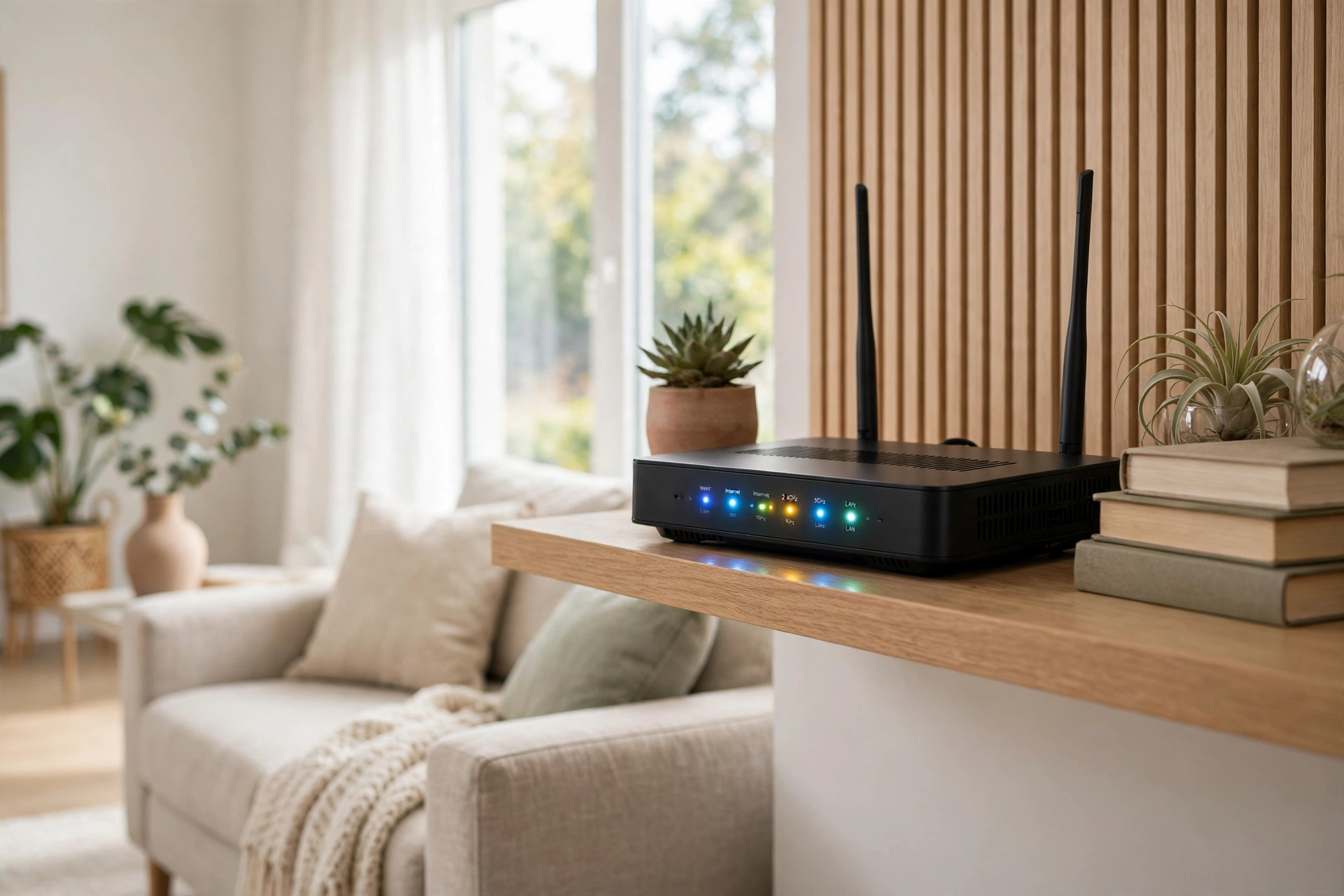
How to Reset Router: An Easy Guide to Fix Slow WiFi
Quick answer: how to reset router
Yes, you can reset your router in a few minutes, and it often fixes slow WiFi. To learn how to reset router the easy way, first try a simple restart: unplug the router for 30 seconds, then plug it back in. If that does not fix it, do a factory reset: press and hold the small reset button for 10 to 30 seconds. The full guide below shows you how to reset router step by step, so your WiFi is fast and stable again.
Restart vs Reset: What Is the Difference?
Many people mix up restart and reset, but they are not the same thing. A restart, also called a reboot, just turns the router off and on again. It keeps all your settings, like your WiFi name and password. A factory reset erases everything and puts the router back to the way it was when it was new. You will need to set up your WiFi name and password again after a factory reset. When you learn how to reset router the safe way, always try a restart first, and use a factory reset only when you need it. That is why it pays to know how to reset router before your WiFi slows down. For more easy tech guides, browse our Tech and Computers tips.
What Do You Need?
You do not need special tools to learn how to reset router, and you do not need to be a tech expert. Anyone can learn how to reset router in a few minutes. Here is the full list.
- Your router, plugged into power
- A paperclip or a pin, for the reset button
- A computer or a phone, for the set up after a factory reset
- Your internet provider login, if you need it for set up
- A few minutes of time
How to Reset Router in 7 Easy Steps

This is the full method for how to reset router. It starts with a simple restart, then shows a factory reset. Read the steps once, then start.
Step 1: Try a Simple Restart First
Unplug the power cable from the back of the router. Wait for 30 seconds, then plug the power cable back in. Wait for 2 to 3 minutes while the router starts up and the lights turn solid. Test your WiFi and see if it is fast again. A restart fixes most slow WiFi problems, and it keeps all your settings. This is the first step in how to reset router without losing your settings.
Step 2: Find the Reset Button
If a restart does not fix the problem, find the small reset button on the back or the bottom of the router. The button is tiny, and it sits in a small hole. You may need a paperclip or a pin to press it. Do not press it yet, because the next step explains how long to hold it.
Step 3: Press and Hold the Reset Button

Use a paperclip to press and hold the reset button for 10 to 30 seconds. Watch the router lights: they will blink, turn off, and then turn back on. Let go of the button when the lights start to blink. The router is now resetting to factory settings. Holding the button is the key step in how to reset router to factory settings.
Step 4: Wait for the Router to Restart
Wait for 2 to 5 minutes while the router restarts. The lights will blink, then turn solid one by one. Do not unplug the router during this time, because that can break the reset. When the lights are solid, the router is ready to set up again.
Step 5: Connect to the Default WiFi
After a factory reset, the router goes back to its default WiFi name and password. You can find the default name and password on a sticker on the bottom or the back of the router. Connect your phone or computer to that WiFi network. If you cannot find the sticker, check the router manual or the maker website.
Step 6: Open the Admin Page and Set a New Password

Open a web browser and go to the router admin page, often at 192.168.1.1 or 192.168.0.1. Log in with the default admin name and password from the sticker or the manual. Change the admin password first, then set a new WiFi name and password. Use a strong password with letters, numbers, and symbols. Setting a new password is a key part of how to reset router safely.
Step 7: Update the Firmware and Test Your WiFi
Check for a firmware update in the router admin page, and install it if one is there. A firmware update can fix bugs and make your WiFi faster and safer. Then test your WiFi on your phone and computer, and check that all your devices connect. These small steps are the last step in how to reset router from start to finish.
How to Reset Router Without Losing Your Settings
A factory reset erases your settings, but a restart does not. Here is how to reset router without losing your settings.
- Unplug the router for 30 seconds, then plug it back in, and wait for the lights to turn solid.
- Log in to the router admin page and use the Reboot or Restart option, which restarts the router without erasing settings.
- Save a backup of your router settings in the admin page before you do a factory reset, so you can restore them later.
That is how to reset router without losing your settings. Use a restart for slow WiFi, and use a factory reset only when you forgot your password or the router has a big problem. That plan is how to reset router without stress, and it works for every router. If you search for how to reset the router on Google, you will find the same advice: restart first, reset only when needed. If you wonder how do I restart my router the fast way, unplug it for 30 seconds and plug it back in. That is the fastest restart. The How-To Geek guide to rebooting your router and modem explains the unplug-and-wait steps in detail.
How to Reset Spectrum Router
Spectrum routers work like most routers, but the steps are a little different. Here is how to reset Spectrum router.
- Unplug the power cable from the Spectrum router and the modem.
- Wait for 30 seconds, then plug the modem back in first.
- Wait for the modem lights to turn solid, then plug the router back in.
- Wait for 2 to 3 minutes for the router to start up.
- If the WiFi is still slow, press and hold the reset button on the back of the router for 10 seconds to factory reset it.
- Set up the WiFi name and password again in the Spectrum app or the admin page.
That is how to reset Spectrum router the easy way. If you wonder how to restart Spectrum the fast way, unplug the router and the modem for 30 seconds, then plug the modem back in first, then the router. Always start the modem first, then the router. If you need to know how to restart your modem too, unplug the modem for 30 seconds, then plug it back in before the router. That order is part of how to reset router for Spectrum the right way.
How to Reset Xfinity Router
Xfinity routers, also called Comcast routers, can be reset in the same way. Here is how to reset Xfinity router.
- Unplug the power cable from the Xfinity router and the modem.
- Wait for 30 seconds, then plug the modem back in first.
- Wait for the modem lights to turn solid, then plug the router back in.
- Wait for 2 to 3 minutes for the router to start up.
- If the WiFi is still slow, press and hold the reset button on the back of the router for 10 seconds, or use the Xfinity app to reset it.
- Set up the WiFi name and password again in the Xfinity app.
That is how to reset Xfinity router the easy way. If you wonder how to reset router Comcast the fast way, use the Xfinity app, because it can restart and reset the router without touching the button. If you want to know how to reset a router from Xfinity, the steps above work for every Xfinity gateway. That app is the easiest way to learn how to reset router Comcast at home.
Best Settings After a Reset: What to Use and What to Avoid
After a factory reset, you need to set up your router again. Here is what to use and what to avoid.
Use: – A strong WiFi password, with letters, numbers, and symbols – WPA2 or WPA3 security, for safe WiFi – The latest firmware, for speed and safety – A WiFi name you can find easily, but not your address or full name – A backup of your settings, saved in the admin page
Avoid: – The default admin password, which anyone can guess – An open WiFi network with no password – Old security like WEP, which is not safe – Placing the router in a closed cabinet or behind thick walls – Forgetting to update the firmware after a reset
If you are not sure about a setting, check the router manual or the maker website. That check is a smart step in how to reset router with the right settings. Knowing how to reset router with the right settings keeps your WiFi fast and safe.
Mistakes to Avoid When You Reset a Router
Many people make these mistakes when they learn how to reset router. Avoid them and your WiFi will stay fast. That is the simplest way to learn how to reset router well.
- Pressing the reset button by mistake, which erases all your settings
- Unplugging the router during a reset, which can break it
- Forgetting to back up your settings before a factory reset
- Using the default admin password after a reset
- Placing the router far from your devices, which makes WiFi slow
- Skipping the firmware update after a reset
How to Reset Router: Quick Checklist
Use this checklist every time you reset your router.
- Try a simple restart first: unplug for 30 seconds, then plug it back in.
- Find the reset button and press it for 10 to 30 seconds for a factory reset.
- Wait for the lights to turn solid.
- Connect to the default WiFi from the sticker.
- Open the admin page and change the admin password.
- Set a new WiFi name and password.
- Update the firmware and test your WiFi.
Frequently Asked Questions
What happens when you reset a router?
When you restart a router, it just turns off and on again, and it keeps all your settings. When you factory reset a router, it erases all your settings and goes back to the way it was when it was new. You will need to set up your WiFi name and password again after a factory reset.
How often should I reset my router?
Restart your router once a month, or when your WiFi is slow. You do not need to factory reset your router often. Do a factory reset only when you forgot your password, when the router has a big problem, or when you give the router to someone else.
What is the difference between restart and reset?
A restart turns the router off and on again and keeps your settings. A reset, also called a factory reset, erases all your settings and puts the router back to factory defaults. Restart first for slow WiFi, and reset only when you need a fresh start.
How do I reset my router password?
If you forgot your WiFi password, log in to the router admin page with the admin password and change the WiFi password there. If you forgot the admin password too, do a factory reset by holding the reset button for 10 to 30 seconds, then log in with the default admin password from the sticker and set a new password.
How long does it take to reset a router?
A simple restart takes about 3 to 5 minutes, including the time the router needs to start up. A factory reset takes about 5 to 10 minutes, including the set up after the reset. Do not unplug the router during the reset, because that can break it.
Will resetting my router fix slow WiFi?
Yes, restarting or resetting your router often fixes slow WiFi, because it clears the router memory and restarts the connection to your internet provider. If your WiFi is still slow after a reset, check your internet speed, move the router to a central spot, or call your internet provider.
Related Guides You May Like
If you liked this guide, try these easy guides from Daily Life Hacks. Learn how to format a usb drive to clean up your drive, see how to remove duplicates in Excel to keep your data clean, read how to track macros for healthy eating, check how to clean an oven to keep your kitchen sparkling, and see how to clean a whiteboard when your board gets stained. You can also read how to polish shoes for a mirror shine on leather, learn how to clean dishwasher filter to keep your dishwasher working well, and see how to wash pillows to keep your bed fresh. Also read how to get water out of your ear, how to stop coughing, how long does a root canal take, how much caffeine is too much, how to learn spanish fast, how to learn japanese, how to learn a new language, how to calculate gpa, how long have humans been on earth, how to practice spanish speaking, how to learn photography, how many states of united states, how many steps in a mile, how to make cold foam, why is my husband yelling at me, and what is a duvet cover. Also read how to fix printer streaks, how to iron a shirt, how to clean a blender, and how to reduce ping. Also read how to make tea, how to remove a splinter, how to clean a hairbrush, and my wife is yelling at me. Also read how many miles is a 5k. Also read how to stop spam emails, how to stop procrastinating, and how to prepare for a phone interview. Also read how to draw anime eyes. You can also browse all our Tech and Computers tips for more simple guides.
Final Thoughts
Learning how to reset router is easy once you know the golden rule: restart first, reset only when you need it. Unplug the router for 30 seconds for a restart, and hold the reset button for 10 to 30 seconds for a factory reset. That is all it takes. Now that you know how to reset router the easy way, your WiFi will stay fast and stable. Share this guide with a friend whose WiFi is slow, because everyone needs to know how to reset router. Just remember to back up your settings, change the default password, and update the firmware. Those three rules are the heart of how to reset router.
About the author
James Wilson writes about cars, tech, and the outdoors for Daily Life Hacks. He tests every tip on his own devices first, so you can trust that it works in real life. More from James Wilson, and see how to remove malware, and see how to remove malware from android, and see how to use a vpn, and see how to spot phishing emails, and see how to set up google alerts, and see how to change default browser to track news online to stay safe online to stay safe online to clean your phone to clean your device


