
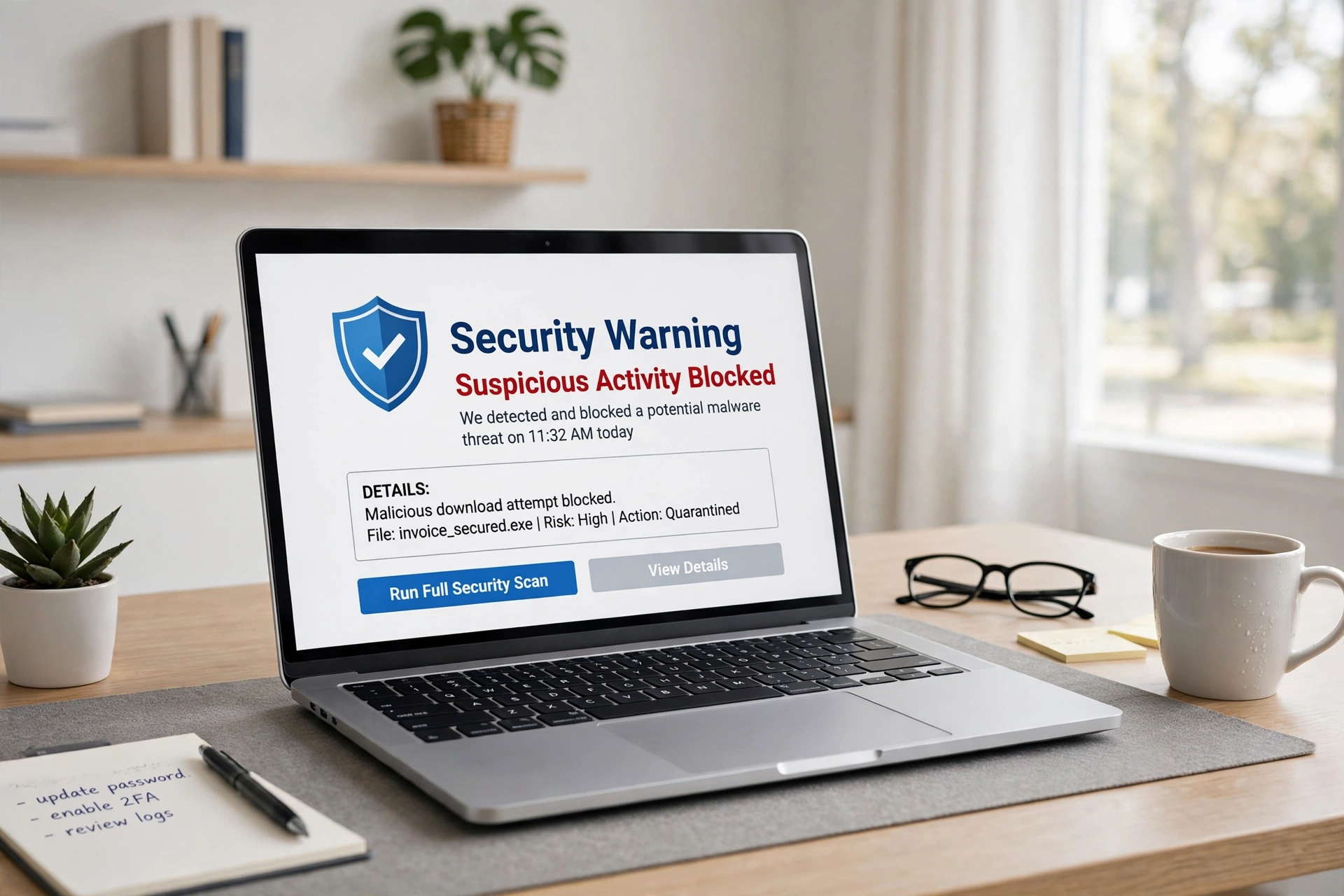
How to Remove Malware: An Easy Guide for Windows, Android and iPhone
Quick answer: how to remove malware
Yes, you can remove malware from your computer or phone at home, and it is easy with a good antivirus scan. To learn how to remove malware the easy way, disconnect from the internet, restart in Safe Mode, delete apps you do not trust, run a full antivirus scan, and remove bad browser extensions. The full guide below shows you how to remove malware step by step, so your device is clean and safe again.
What Is Malware and How Do You Know You Have It?
Malware is bad software that can steal your data, slow down your device, or show you fake ads. It can come from a bad download, a fake email link, or a dodgy app. Here are the signs that you may have malware.
- Your device is very slow, even for simple tasks
- Pop up ads appear all the time, even when you do not open a browser
- Your browser home page or search engine changed without you doing it
- Apps you do not know appear on your device
- Your battery drains fast, or your data use is very high
- Your friends get strange messages from your accounts
If you see two or more of these signs, it is time to clean up your device. For more easy tech guides, browse our Tech and Computers tips.
What Do You Need?
You do not need special tools to learn how to remove malware. Here is the full list.
- Your computer or phone, charged up
- A good antivirus app, like Windows Defender or Malwarebytes
- Your WiFi password, in case you need to reconnect
- A backup of your important files, if you can make one
- A few minutes of time
How to Remove Malware in 7 Easy Steps (Windows PC)
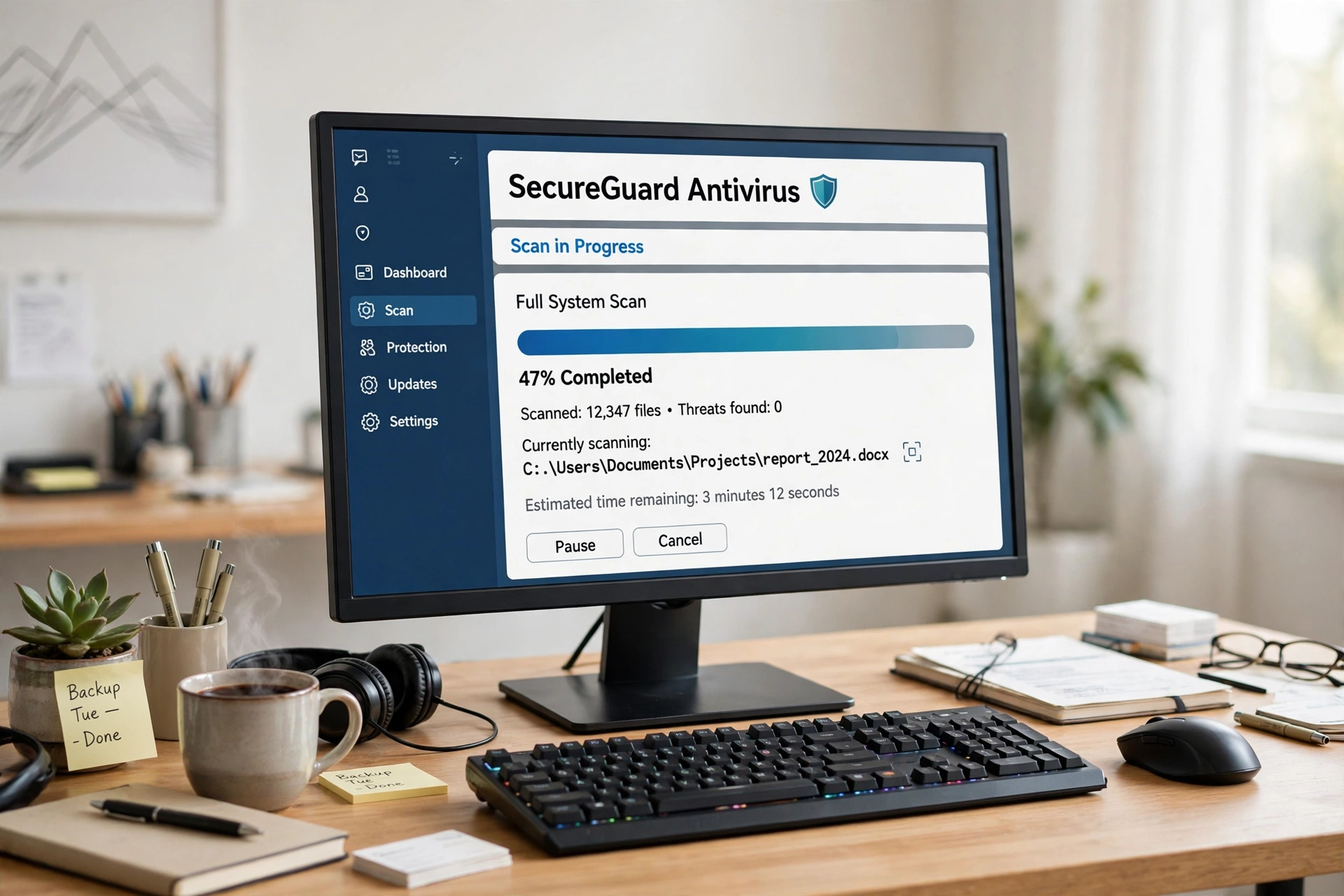
This is the full method for how to remove malware from a Windows computer. Read the steps once, then start.
Step 1: Disconnect from the Internet
Turn off WiFi and unplug the network cable. This stops the malware from sending your data or downloading more bad files. You can turn the internet back on after the scan is done. Disconnecting is the first step in how to remove malware safely.
Step 2: Restart in Safe Mode
Restart your computer in Safe Mode. On Windows 10 and 11, hold the Shift key while you click Restart, then go to Troubleshoot, Advanced options, Startup Settings, and pick Safe Mode with Networking. Safe Mode loads only the basic files, so the malware cannot run and hide. This step makes the clean up much easier.
Step 3: Delete Apps You Do Not Trust
Open Settings, then Apps, then Installed apps. Look for apps you do not know, apps you never installed, or apps with strange names. Uninstall them one by one. If an app will not uninstall, note its name and move on, because the antivirus scan will deal with it. Deleting bad apps is a key part of how to remove malware from computer, and it is the first thing to check.
Step 4: Run a Full Antivirus Scan
Open Windows Security, click Virus and threat protection, then Scan options, then Full scan, and click Scan now. A full scan can take 30 minutes or more, so let it run. You can also run a free Malwarebytes scan for a second check. When the scan finds threats, click Remove or Quarantine. A full scan is the heart of how to remove malware from pc, and it finds what you cannot see. Microsoft’s guide to starting a scan in Microsoft Defender shows the same steps for Windows, Android, and Mac.
Step 5: Remove Bad Browser Extensions
Open your browser, go to Extensions, and remove any extension you do not know or trust. Then reset your browser settings to the default, which fixes a changed home page or search engine. Bad extensions are a common source of pop up ads, so this step matters a lot in how to remove malware from a computer.
Step 6: Clear Temp Files and Update Everything
Open Disk Cleanup and delete temp files, which can hide malware. Then update Windows, your browser, and your antivirus app to the latest version. Updates fix security holes that malware uses to get in. This step is a key part of how to remove malware for good.
Step 7: Change Your Passwords and Reconnect
Change the passwords for your email, bank, and social media accounts, because the malware may have seen them. Use strong passwords, and turn on two factor auth where you can. Then reconnect to the internet and test your computer. These small steps are the last step in how to remove malware from start to finish.
How to Remove Malware from Android
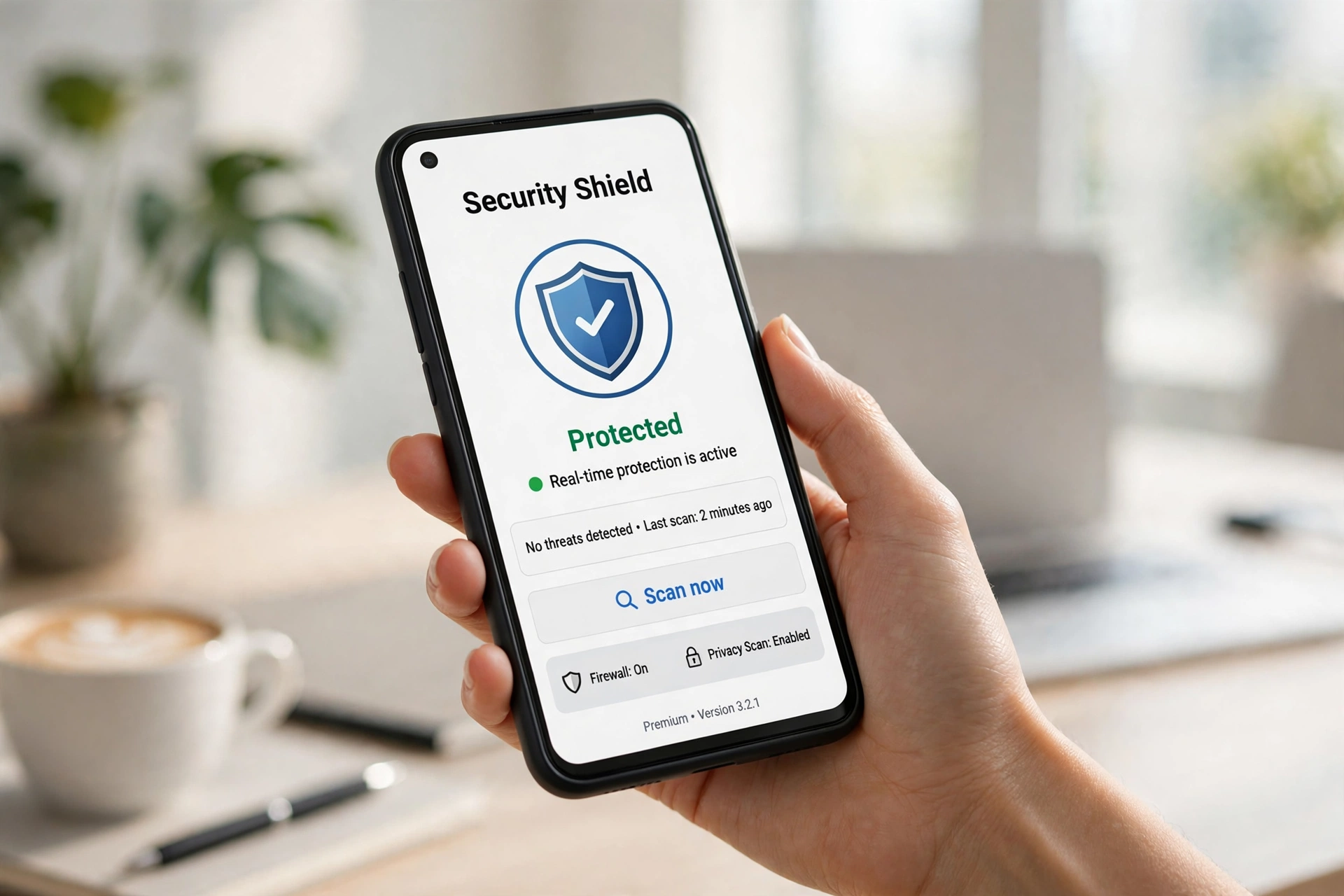
Android phones can get malware from bad apps. Here is how to remove malware from Android.
- Put your phone in Safe Mode: press and hold the power button, then press and hold Power off until you see Reboot to safe mode, and tap OK.
- In Safe Mode, go to Settings, then Apps, and uninstall any app you do not trust.
- Run a scan with Google Play Protect: open the Play Store, tap your profile icon, then Play Protect, then Scan.
- Clear your browser data: open Chrome, go to Settings, then Privacy and security, then Clear browsing data.
- Restart your phone in normal mode and test it.
That is how to remove malware from Android. If you wonder how to get rid of virus on Android, these steps are the answer, because most Android malware is a bad app. If the phone is still slow after this, back up your photos and do a factory reset. If you want to know how to check for viruses on Android, run a Play Protect scan or an android virus scan with a trusted antivirus app from the Play Store.
How to Remove Malware from iPhone
iPhones rarely get real malware, but they can get bad profiles and fake apps. Here is how to remove malware from iPhone.
- Update your iPhone to the latest iOS version, which fixes security holes.
- Delete any app you do not trust: press and hold the app icon, then tap Remove App.
- Clear Safari data: go to Settings, then Safari, then Clear History and Website Data.
- Check for bad profiles: go to Settings, then General, then VPN and Device Management, and delete any profile you do not know.
- Restart your iPhone and test it.
That is how to remove malware from iPhone. If you wonder how to get rid of virus on phone when it is an iPhone, these steps are the answer, because iPhone malware is almost always a bad profile or a bad web page, not a real virus. If the phone still acts strange, back up your data and reset all settings.
Best Malware Removal Tools: What to Use and What to Avoid

The best malware removal tool is one you trust. Here is what to use and what to avoid.
Use: – Windows Defender, which is free and built into Windows – Malwarebytes Free, for a strong second scan – Google Play Protect, for Android phones – Your phone maker security app, for iPhone and Android – A strong password and two factor auth, for all your accounts
Avoid: – Free antivirus apps from ads or pop ups, which can be malware themselves – Paying for a tool from a scary pop up that says your device is infected – Downloading apps from outside the official app store – Clicking links in strange emails or texts – Ignoring updates, which fix security holes
If you are not sure about a tool, check the maker website or a trusted tech site first. That check is a smart step in how to remove malware with the right tools. The best malware removal plan is simple: a built in antivirus, a second scan with Malwarebytes, and safe habits every day.
Mistakes to Avoid When You Remove Malware
Many people make these mistakes when they learn how to remove malware. Avoid them and your device will stay safe.
- Clicking a pop up that says your device is infected, which can install more malware
- Downloading a random cleaner app from an ad
- Skipping Safe Mode, which lets the malware hide from the scan
- Forgetting to change your passwords after the clean up
- Not updating your device after the scan
- Thinking one scan is enough, when a second scan is safer
How to Remove Malware: Quick Checklist
Use this checklist every time you clean a device.
- Disconnect from the internet.
- Restart in Safe Mode.
- Delete apps you do not trust.
- Run a full antivirus scan and remove what it finds.
- Remove bad browser extensions and reset your browser.
- Clear temp files and update everything.
- Change your passwords and reconnect.
Frequently Asked Questions
Can malware be removed completely?
Yes, most malware can be removed completely with a full antivirus scan in Safe Mode, plus deleting bad apps and browser extensions. If the malware keeps coming back, back up your files and do a factory reset, which wipes the device clean.
How do I check for viruses on Android?
Run a Google Play Protect scan from the Play Store, or use a trusted antivirus app from the Play Store. An android virus scan will check your apps and files for threats. Also check your battery and data use, because malware often drains both.
How do I get rid of a virus on my phone?
On Android, restart in Safe Mode, uninstall apps you do not trust, run a Play Protect scan, and clear your browser data. On iPhone, update iOS, delete apps you do not trust, clear Safari data, and delete bad profiles. These steps fix most phone viruses.
Is free antivirus enough to remove malware?
Yes, free antivirus like Windows Defender and Malwarebytes Free is enough for most malware. A paid antivirus adds extra features, but the free tools can find and remove most threats. The key is to run a full scan, not a quick scan.
Will a factory reset remove malware?
Yes, a factory reset removes almost all malware, because it wipes the device and puts it back to factory settings. Back up your photos and files first, because a factory reset erases everything. Use it only when a scan does not fix the problem.
How did I get malware on my device?
Malware often comes from a bad download, a fake email link, a dodgy app, or a pop up ad. It can also come from a USB drive or a public WiFi network. To stay safe, download apps only from the official store, do not click strange links, and keep your device updated.
Related Guides You May Like
If you liked this guide, try these easy guides from Daily Life Hacks. Learn how to reset router to fix slow WiFi, see how to format a usb drive to clean up your drive, read how to remove duplicates in Excel to keep your data clean, check how to clean an oven to keep your kitchen sparkling, and see how to clean a whiteboard when your board gets stained. You can also read how to polish shoes for a mirror shine on leather, learn how to clean dishwasher filter to keep your dishwasher working well, and see how to wash pillows to keep your bed fresh. Also read how to get water out of your ear, how to stop coughing, how long does a root canal take, how much caffeine is too much, how to learn spanish fast, how to learn japanese, how to learn a new language, how to calculate gpa, how long have humans been on earth, how to practice spanish speaking, how to learn photography, how many states of united states, how many steps in a mile, how to make cold foam, why is my husband yelling at me, and what is a duvet cover. Also read how to fix printer streaks, how to iron a shirt, how to clean a blender, and how to reduce ping. Also read how to make tea, how to remove a splinter, how to clean a hairbrush, and my wife is yelling at me. Also read how many miles is a 5k. You can also browse all our Tech and Computers tips for more simple guides.
Final Thoughts
Learning how to remove malware is easy once you know the golden rule: disconnect, scan in Safe Mode, and delete what you do not trust. Run a full scan, remove bad extensions, update your device, and change your passwords. That is all it takes. Now that you know how to remove malware the easy way, your devices will stay clean and safe. Just remember to download apps only from the official store, do not click strange links, and keep your device updated. Share this guide with a friend whose device is slow, because everyone needs to know how to remove malware. Those three rules are the heart of how to remove malware.
About the author
James Wilson writes about cars, tech, and the outdoors for Daily Life Hacks. He tests every tip on his own devices first, so you can trust that it works in real life. More from James Wilson, and see how to remove malware from android, and see how to use a vpn, and see how to spot phishing emails, and see how to set up google alerts, and see how to change default browser to track news online to stay safe online to stay safe online to clean your phone


10 Comments