How to Stop Spam Emails: An Easy Guide to a Clean Inbox
Quick answer: how to stop spam emails
Yes, you can stop most spam emails in a few minutes, and it is easy on Gmail, iPhone, and Android. To learn how to stop spam emails the easy way, mark them as spam, block the sender, and unsubscribe from lists you do not want. The full guide below shows you how to stop spam emails step by step, so your inbox stays clean and safe.
What Are Spam Emails and Why Do You Get Them?
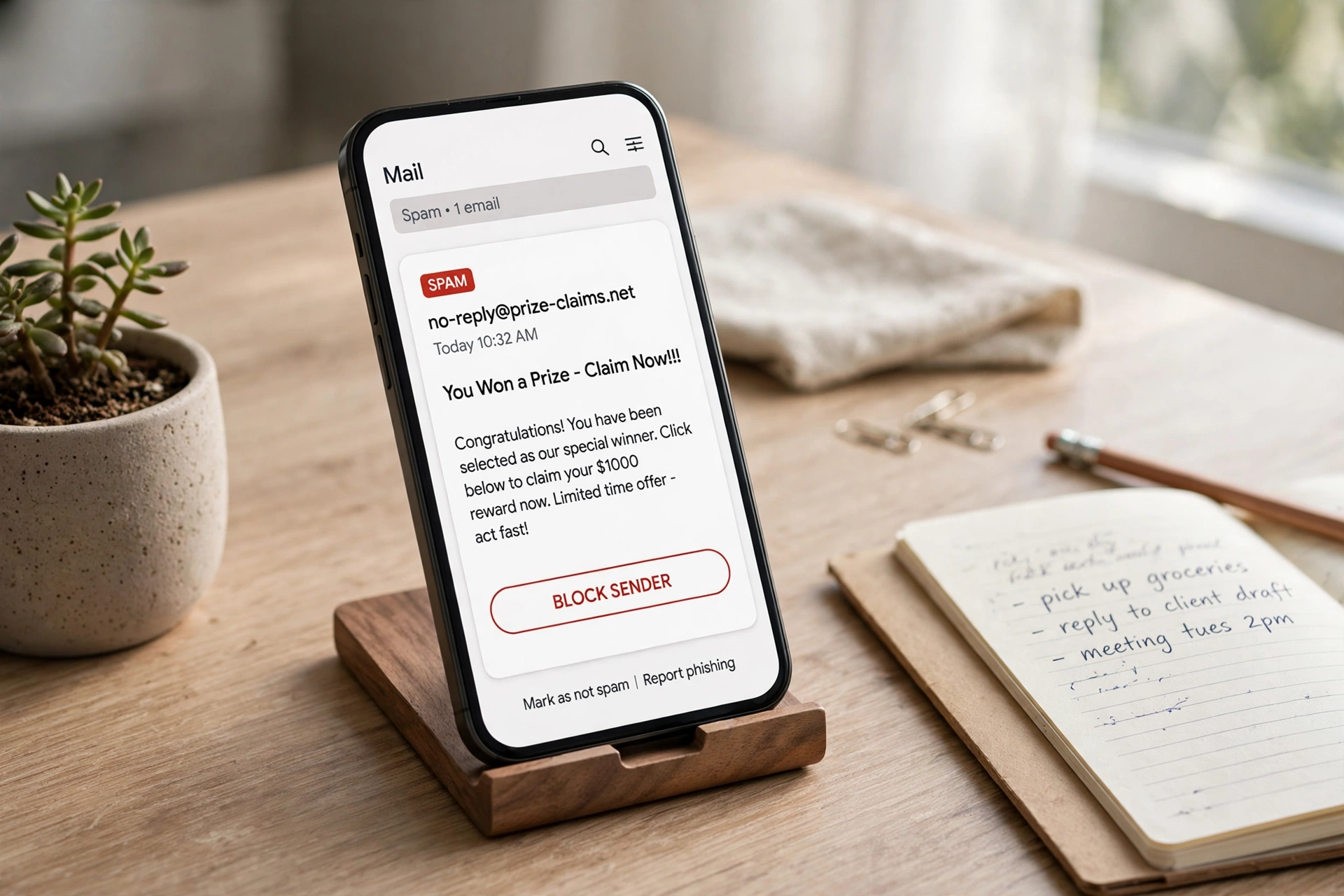
Spam emails are junk messages you did not ask for. They may sell fake products, promise free prizes, or try to trick you into clicking a bad link. Some spam is just ads from stores. Other spam is a scam that wants your password or your money. This guide will show you how to stop spam emails for good, and how to keep the good mail while the junk stays out.
You get spam emails for a few simple reasons. You may have signed up for a free offer, a game, or a store discount and shared your email. A data leak may have put your email on a list that spammers buy and sell. Or a friend may have shared your address by mistake. Once you know how to stop spam emails at the source, you can cut them off and stop new ones from coming in.
Spam is not the same as a newsletter you signed up for. A newsletter comes from a real store or site you know, and it has an unsubscribe link at the bottom. Spam comes from a sender you do not know, and it often has no real unsubscribe link. If you click unsubscribe on real spam, it can tell the spammer your email is live, and you may get more spam. That is why it helps to know the difference before you act. For more easy tech guides, browse our Tech and Computers tips.
What Do You Need?
You do not need special tools to learn how to stop spam emails. Here is the full list.
- Your email app, on your phone or computer
- A few minutes of time
- A second email address, if you want one for sign ups
How to Stop Spam Emails in 7 Easy Steps
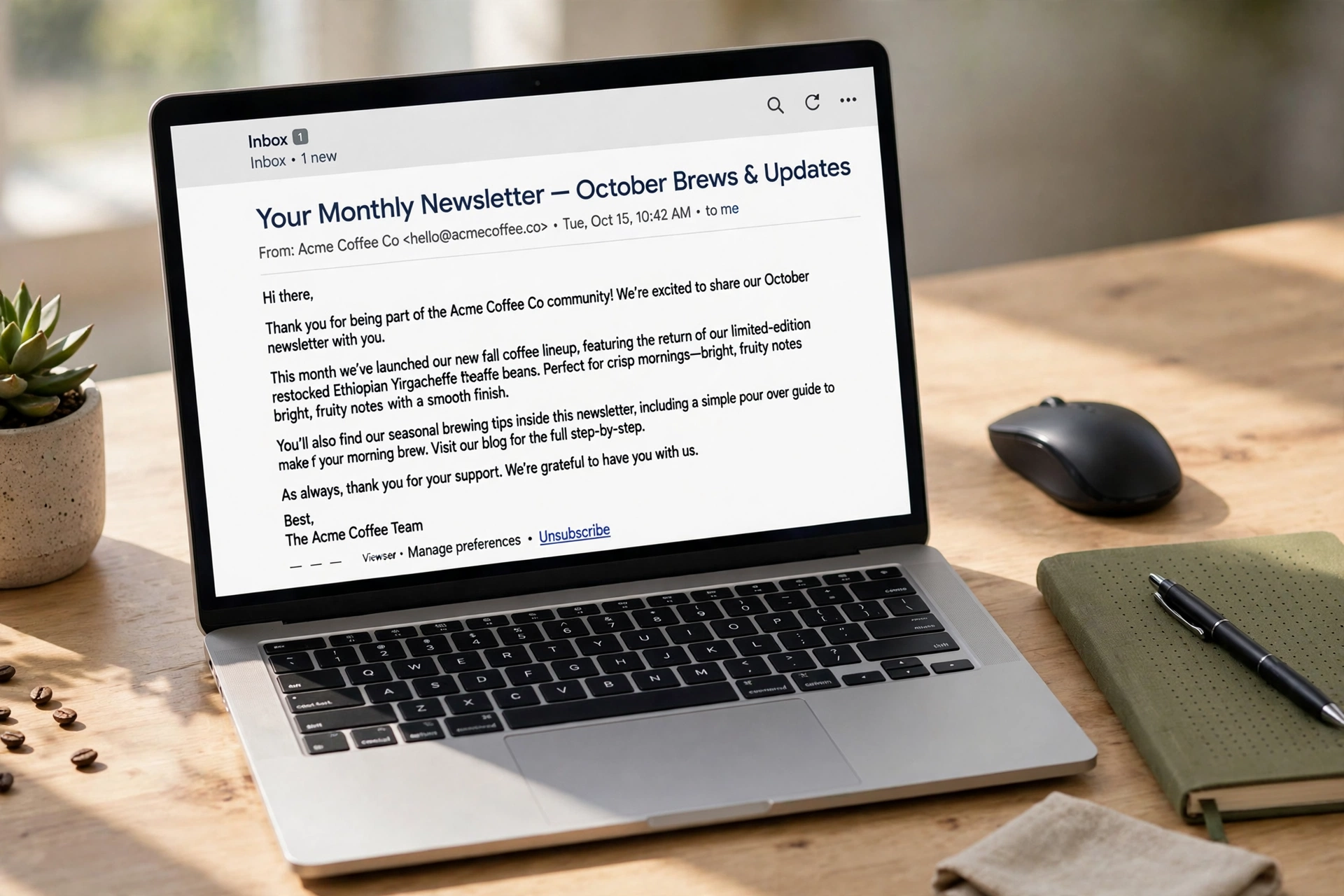
These steps work in Gmail, Outlook, Apple Mail, and Yahoo, and they are the fastest way to learn how to stop spam emails. Read the steps once, then start with step 1.
Step 1: Mark Spam as Spam
Open the spam email and look for the Report spam button. In Gmail it looks like an exclamation mark in a circle. In Apple Mail it may say Move to Junk. Tap it once. This moves the email out of your inbox and teaches your email app that this sender is junk. Marking spam is the first step in how to stop spam emails the right way, because your filter gets smarter every time you mark one.
Step 2: Block the Sender
If the same sender keeps writing to you, block them. Open the email, tap the three dots or the More menu, and choose Block sender. After you block a sender, their new emails go straight to the spam folder or trash. Blocking is one of the best tools for how to stop spam emails from a specific sender, because it stops that address for good. Learning how to block spam emails is simple: open the mail, tap the menu, and choose Block sender. If the spammer changes their address, mark the new one as spam too.
Step 3: Unsubscribe from Real Lists
If the email comes from a real store or site you signed up for, use the unsubscribe link. Open the email, scroll to the bottom, and click Unsubscribe. Gmail also shows an Unsubscribe link at the top of the email, next to the sender name. Only unsubscribe from senders you know. Never click unsubscribe on a clear scam email, because that can confirm your address is real. Unsubscribe is the safe way to learn how to stop spam emails from real stores and news sites you no longer want. Learning how to unsubscribe from spam emails is safe only for real lists you signed up for.
Step 4: Report Spam and Phishing
When an email tries to trick you, report it. In Gmail, open the email, tap the three dots, and choose Report phishing. In Apple Mail, move it to Junk and your mail app learns from it. Reporting is a key part of how to stop spam emails for everyone, not just for you, because email providers use reports to block the same scam for other people too. If you want to know how to report spam emails, open the mail and look for Report spam or Report phishing in the menu. If an email pretends to be your bank or a delivery service, report it and do not click any link inside it. Learn more in our guide on how to spot phishing emails.
Step 5: Set Up a Filter
A filter is a rule that sorts your mail for you. In Gmail, click the search bar, then click Show search options. Type the sender address or a word from the spam subject, then click Create filter. Tick Delete it or Skip the Inbox, then click Create filter. Now mail from that sender skips your inbox on its own. Filters are the smart way to learn how to stop spam emails before they reach your inbox, and they work while you sleep.
Step 6: Use a Second Email for Sign Ups
Make a free second email address and use it when a site asks you to sign up for a free trial, a contest, or a download. Keep your main email for family, work, and banks only. This way the spam goes to your second inbox, and your main inbox stays clean. A second email is a simple trick for how to stop spam emails from sign up forms, and it takes only a few minutes to set up in Gmail or Outlook.
Step 7: Check Your Spam Folder Once a Week
Your spam filter is smart, but it can make a mistake. Once a week, open your Spam or Junk folder and scan the list. If you see a real email from a friend, a school, or a store you trust, open it and tap Not spam. This teaches the filter and saves real mail. Checking the spam folder is the last step in how to stop spam emails without losing real mail, and it takes less than one minute.
Block vs Unsubscribe vs Report Spam: What Works Best?
Block, unsubscribe, and report spam all help, but they work best in different cases. This is the core of how to stop spam emails well, so pick the right tool for each email.
Block
Block is best when one sender keeps writing to you. It stops that exact address. Use block for a pushy store, a repeat scammer, or a sender you will never want mail from. Block is fast, and it works on Gmail, iPhone, and Android. If you want to learn how to stop spam emails from one sender fast, block is the best choice.
Unsubscribe
Unsubscribe is best when you signed up for a real list and now you want out. It removes you from the list in a clean way. Use it for stores, news sites, and apps you know. Do not use it on clear scam mail, because the unsubscribe link in a scam can be fake. Unsubscribe is the polite fix, and it works well for real mail you asked for once.
Report Spam
Report spam is best when the email is a scam or a fake. It tells your email provider to block the sender for everyone. Use it for prize scams, fake bank mail, and fake delivery notes. Reporting is how to stop spam emails at the source, because it trains the spam filter for millions of people. Report takes one tap, and it is the most helpful choice for true junk.
Filter
A filter is best when you want a rule that works on its own. It can delete, archive, or label mail from a sender or with a word in the subject. Use a filter for repeat words like free prize or act now. A filter is the only tool that works while you do nothing, so pair it with block and report for the best result.
How to Stop Spam Emails in Gmail
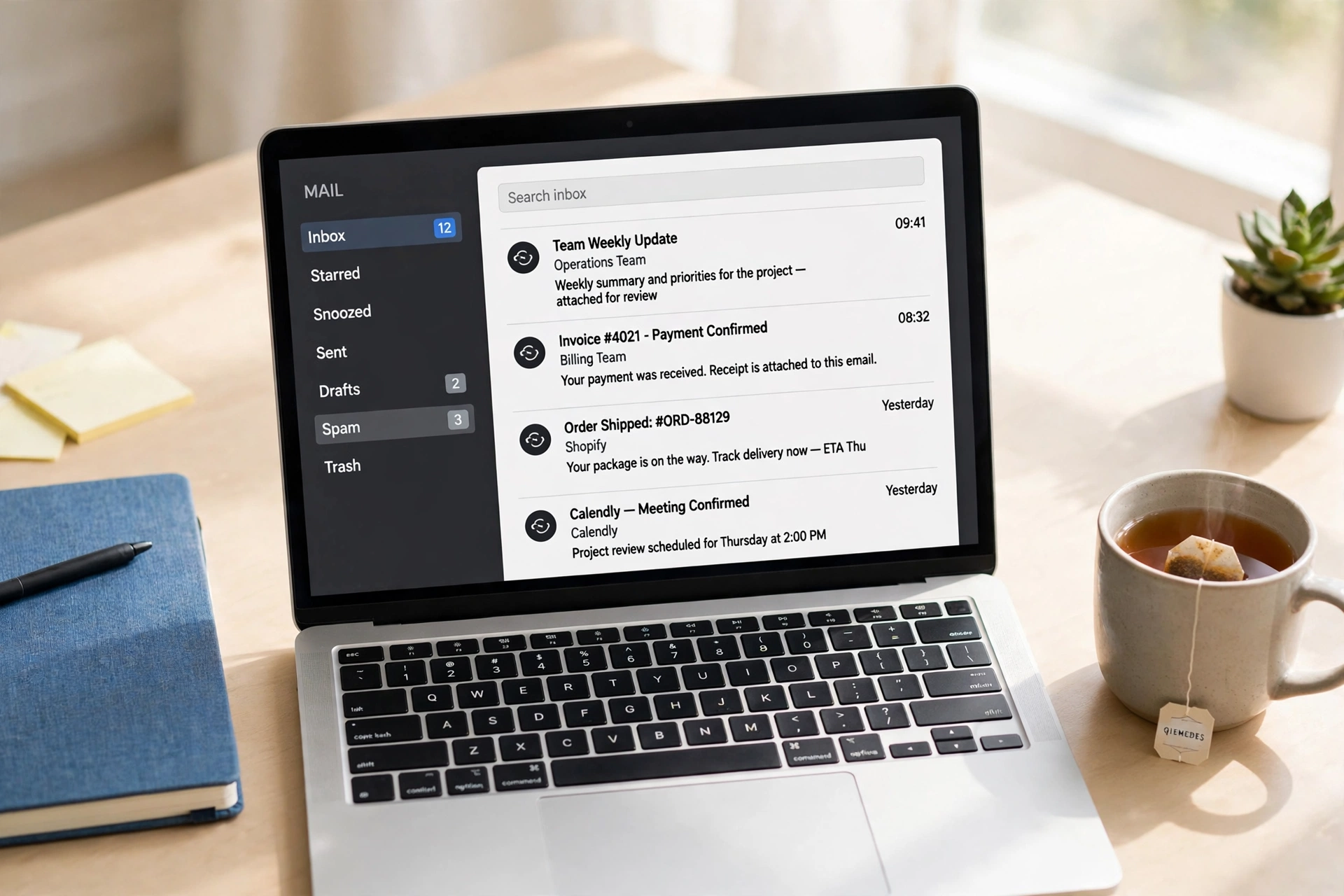
Gmail has the strongest spam tools of any free email app, and it makes it easy to learn how to stop spam emails in Gmail. Here is what to do on a computer and on the Gmail app.
- Open the spam email and click the Report spam icon at the top.
- To block a sender, click the three dots next to Reply and choose Block.
- To unsubscribe, click the Unsubscribe link next to the sender name at the top.
- To make a filter, click the search bar, then Show search options, type the sender or subject word, and click Create filter.
- To see your blocked list, go to Settings, then See all settings, then Filters and Blocked Addresses.
The Gmail filter is the strongest tool for how to stop spam emails in Gmail for good, because it can delete junk before you ever see it. You can also turn on the spam filter check in Settings to make sure Gmail moves junk out of your inbox on its own. That is all it takes to stop spam emails in Gmail on a computer and on the app, and it takes about five minutes to set up. If your Gmail is slow or full of junk, a clean inbox can also help your device run better, just like our guide on how to remove malware helps a slow computer.
How to Stop Spam Emails on iPhone and Android
Your phone has built in tools to stop spam, and they work well. On iPhone, the steps for how to stop spam emails on iPhone are quick, and on Android, the steps for how to stop spam emails on Android are just as easy.
On iPhone, open the Mail app and swipe left on a spam email, then tap More and choose Move to Junk. To block a sender, open the email, tap the sender name, and tap Block this Contact. You can also turn on Filter Unknown Senders in Settings, then Mail, so mail from people not in your contacts goes to its own list. In the Gmail app on iPhone, open the email, tap the three dots, and choose Report spam or Block.
On Android, open the Gmail app and open the spam email, then tap the three dots and choose Report spam or Block. To unsubscribe, tap the Unsubscribe link at the top of the email. You can also go to Settings in the Gmail app and turn on spam protection if it is off. That is how to stop spam emails on iPhone and Android in a few taps, and you do not need any extra app to do it. If your Android phone feels slow or full of junk apps, see our guide on how to remove malware from Android.
Mistakes to Avoid When You Stop Spam Emails
Many people make these mistakes when they learn how to stop spam emails. Avoid them and your inbox will stay clean.
- Clicking links inside spam emails, which can lead to fake sites
- Clicking unsubscribe on a clear scam, which can confirm your address is real
- Replying to spam, which tells the spammer your email is live
- Sharing your main email on every sign up form and contest
- Never checking the spam folder, so real mail can sit there for weeks
- Using the same password for your email and other sites, which is risky if a leak happens
Clicking links is the worst mistake when you learn how to stop spam emails, because one bad click can install malware or steal your password. If you clicked a bad link by mistake, change your email password right away and run a check with our guide on how to remove malware. A strong password and two step verification also help a lot, and a VPN can keep you safer on public WiFi.
How to Stop Spam Emails: Quick Checklist
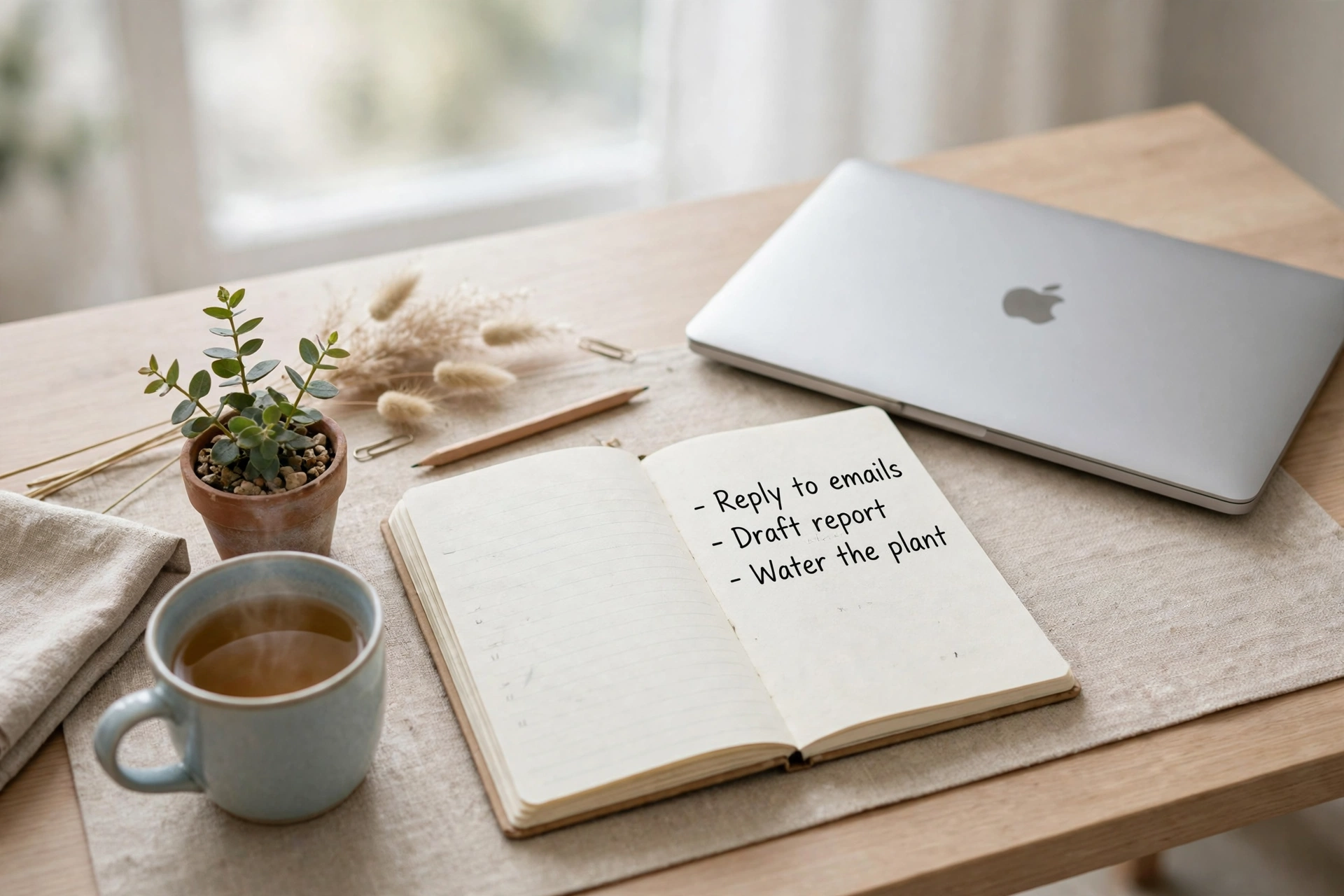
Use this checklist every time you clean your inbox and learn how to stop spam emails.
- Mark the spam email as spam.
- Block the sender if they keep writing.
- Unsubscribe only from real lists you know.
- Report scams as phishing.
- Make a filter for repeat senders or words.
- Use a second email for sign ups.
- Check your spam folder once a week for real mail.
Frequently Asked Questions
How do I stop spam emails in Gmail?
Open the spam email and click the Report spam icon at the top. To block the sender, click the three dots and choose Block. To stop a real list, click the Unsubscribe link at the top. You can also make a filter in Settings to delete mail from that sender on its own. That is all it takes in Gmail, and it works in under a minute.
How do I stop spam emails on my iPhone?
Open the Mail app, swipe left on the spam email, tap More, and choose Move to Junk. To block a sender, open the email, tap the sender name, and tap Block this Contact. You can also turn on Filter Unknown Senders in Settings, then Mail. In the Gmail app, tap the three dots and choose Report spam or Block. That is how to stop spam emails on iPhone in a few taps.
Can I block spam emails from a specific sender?
Yes, you can block any sender in Gmail, Outlook, Apple Mail, and Yahoo. Open an email from that sender, tap the three dots or the More menu, and choose Block sender. New mail from that address will go to spam or trash. That is how to stop spam emails from a specific sender for good, and you can unblock them later in Settings if you change your mind.
Why am I suddenly getting a lot of spam emails?
You may have signed up for a new site, entered a contest, or had your email shared in a data leak. Spammers buy and sell email lists, so one sign up can lead to many spam emails. Mark them as spam, block the senders, and use a second email for future sign ups to slow it down.
Is it safe to unsubscribe from spam emails?
Unsubscribe is safe when you learn how to stop spam emails from real senders you know, like a store or a news site. It is not safe on a clear scam email, because the link may be fake and clicking it can confirm your address is real. For scam mail, mark it as spam and report it instead of clicking unsubscribe.
How do I report spam emails?
In Gmail, open the email, tap the three dots, and choose Report spam or Report phishing. In Apple Mail, move the email to Junk. In Outlook, use the Junk button at the top. Reporting helps your email provider block the same scam for other people too.
Will a spam filter delete my real emails?
A spam filter can make a mistake and move a real email to spam, but this is rare. Check your Spam or Junk folder once a week and tap Not spam on any real mail you find. This teaches the filter and keeps your real mail safe.
Related Guides You May Like
If you liked this guide, try these easy guides from Daily Life Hacks. Learn how to set up google alerts to track news online, see how to spot phishing emails to stay safe online, read how to use a vpn to stay safe on public WiFi, check how to reset your router to fix slow internet, and see how to remove duplicates in Excel to keep your data clean. Also read how to stop procrastinating, and how to prepare for a phone interview. Also read how to draw anime eyes. You can also browse all our Tech and Computers tips for more simple guides.
Final Thoughts
Learning how to stop spam emails is easy once you know the golden rule: mark it, block it, and report it. Unsubscribe only from real lists you know, and use a filter for the senders that keep coming back. Keep a second email for sign ups, and check your spam folder once a week so real mail never gets lost. Now that you know how to stop spam emails the easy way, your inbox will stay clean and safe. Just remember never to click links in spam, never to reply to a scammer, and always to report phishing when you see it. Those three rules are the heart of how to stop spam emails.
About the author
James Wilson writes about cars, tech, and the outdoors for Daily Life Hacks. He tests every tip on his own devices first, so you can trust that it works in real life. More from James Wilson