
How to Format a USB Drive: An Easy Guide for Windows and Mac
Quick answer: how to format a usb drive
Yes, you can format a USB drive in a few minutes, and it is easy on Windows and Mac. To learn how to format a usb drive the easy way, back up your files first, plug in the drive, right click it in File Explorer on Windows or open Disk Utility on Mac, pick a file system, and click Format. The full guide below shows you how to format a usb drive step by step, so your drive is clean and ready to use.
Why Would You Format a USB Drive?
People format a USB drive for a few simple reasons. The drive may be full of old files, it may have errors, it may not work on a TV or a car stereo, or it may need a different file system. Formatting wipes the drive clean and sets up a fresh file system, so the drive works like new. That is why so many people search for how to format a usb drive when their drive starts to act up. When you learn how to format a usb drive the safe way, you can fix a slow or messy drive in minutes. That is why it pays to know how to format a usb drive before the next time your drive acts up. For more easy tech guides, browse our Tech and Computers tips.
What Do You Need?
You do not need special tools to learn how to format a usb drive, and you do not need to be a tech expert. Here is the full list.
- A USB drive, plugged into your computer
- A Windows PC or a Mac
- A backup of your files, because formatting erases everything
- A few minutes of time
How to Format a USB Drive in 7 Easy Steps (Windows)
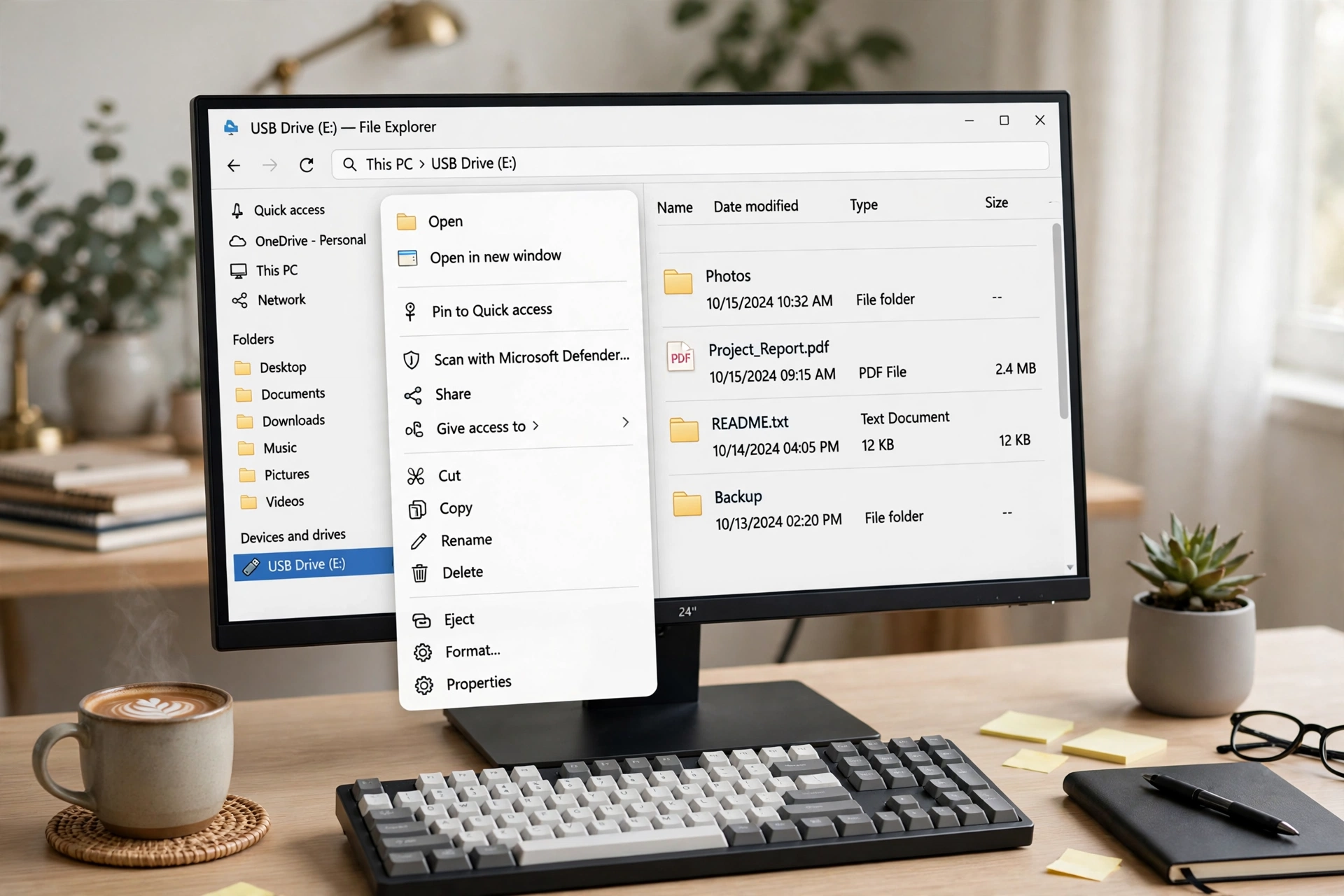
This is the full method for how to format a usb drive on Windows. Read the steps once, then start.
Step 1: Back Up Your Files First
Formatting erases everything on the drive, so copy your files to your computer first. Open the drive, select your files, and copy them to a folder on your PC. Check the backup twice, because you cannot get the files back after you format the drive. Backing up is the first step in how to format a usb drive safely.
Step 2: Plug In the Drive
Plug the USB drive into a USB port on your computer. Wait a few seconds for Windows to see the drive. You should see the drive in File Explorer, under This PC. If Windows does not see the drive, try another USB port.
Step 3: Open File Explorer
Open File Explorer and click This PC on the left side. Find your USB drive in the list of drives. Make sure you pick the right drive, because formatting the wrong drive erases the wrong files. Check the drive letter and the size to be sure.
Step 4: Right Click and Choose Format
Right click the USB drive and choose Format from the menu. A small Format window will open. This window shows the file system, the allocation unit size, and the volume label. Do not change the allocation unit size unless you know what it does.
Step 5: Pick a File System
Pick a file system from the list. FAT32 works on almost every device, but it cannot hold a single file bigger than 4 GB. exFAT works on Windows and Mac, and it can hold very large files. NTFS works best on Windows only. For most people, exFAT is the best choice. Picking the right file system is a key part of how to format a usb drive well. That choice is part of how to format a usb drive the right way for your device.
Step 6: Tick Quick Format and Start
Tick the Quick Format box, type a name for the drive if you want, then click Start. Windows will warn you that formatting erases all data. Click OK to go ahead. Quick Format takes only a few seconds for most drives. A full format takes longer, but it checks the drive for bad sectors.
Step 7: Wait for the Done Message
Wait for Windows to show a “Format Complete” message, then click OK and close the window. Your drive is now clean and ready to use. Copy your files back onto the drive if you need them. These small steps are the last step in how to format a usb drive from start to finish.
How to Format a USB Drive on Mac
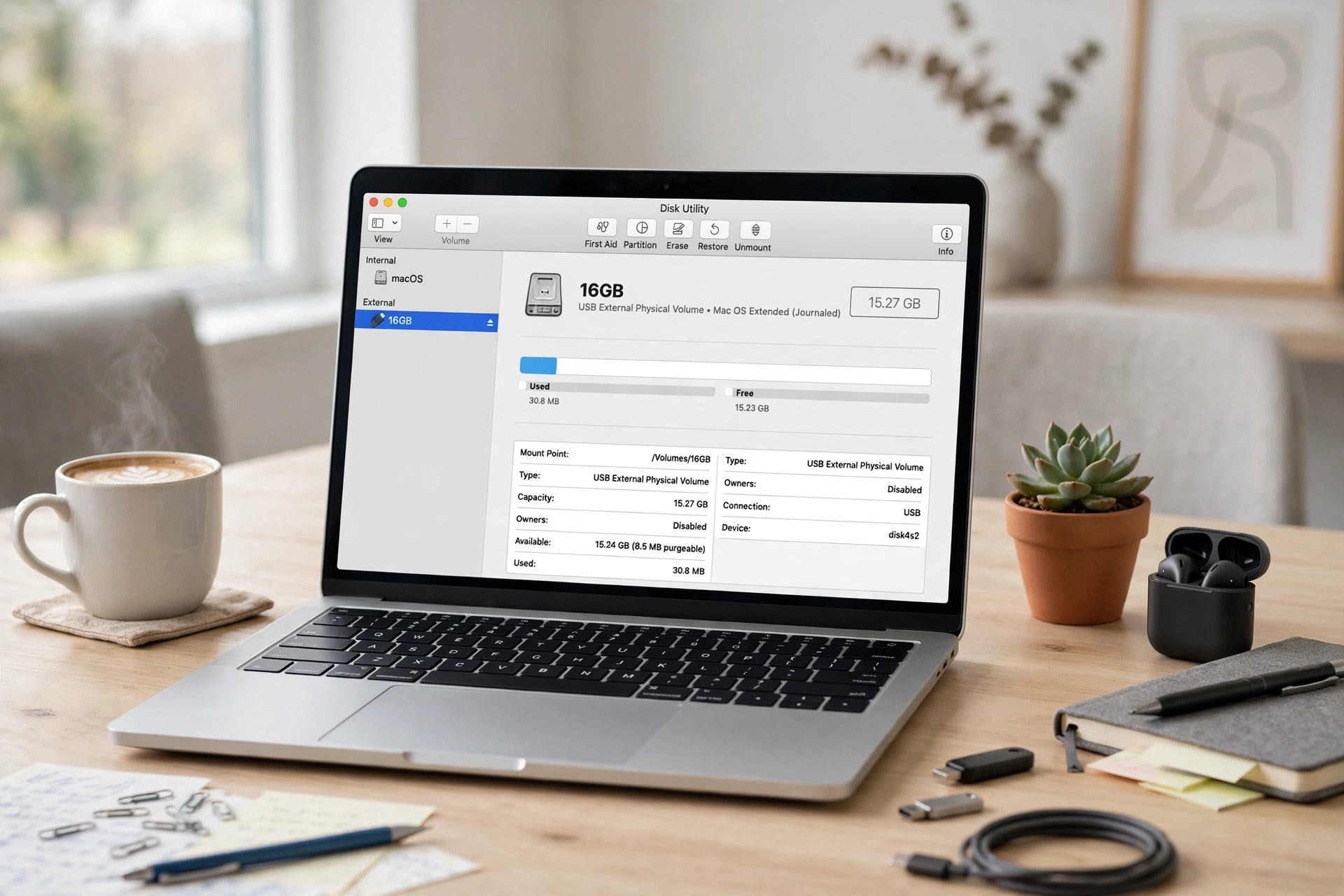
Formatting on a Mac is just as easy. Here is how to format a usb drive on Mac.
- Plug the USB drive into your Mac.
- Open Finder, then open Applications, then Utilities, then Disk Utility.
- Select your USB drive on the left side, and be sure you pick the right drive.
- Click Erase at the top of the window.
- Type a name for the drive, pick a format, and click Erase.
- Wait for the process to finish, then click Done.
That is how to format a usb drive on Mac. For the format, pick MS-DOS (FAT) for FAT32, or ExFAT for large files. Learning how to format a usb drive on Mac takes only a few minutes, and the steps are the same every time. Some people search for format usb drive mac guides, and the steps above are the answer. MS-DOS (FAT) works on almost every device, and ExFAT works on Mac and Windows. If you wonder how to format usb drive on Mac for a TV or a car stereo, pick MS-DOS (FAT), because most TVs and stereos read FAT32.
How to Format a USB Drive to FAT32
FAT32 is the most compatible file system, but Windows limits FAT32 formatting to drives of 32 GB or less. Here is how to format a usb drive to FAT32.
- On Windows, plug in the drive, open File Explorer, right click the drive, and choose Format.
- Pick FAT32 from the file system list, tick Quick Format, and click Start.
- On Mac, open Disk Utility, select the drive, click Erase, and pick MS-DOS (FAT) as the format.
- If your drive is bigger than 32 GB and Windows does not show FAT32, use exFAT instead, or use a free tool like Rufus to format it as FAT32.
That is how to format a usb drive to FAT32 on Windows and Mac. If you need to know how to format a usb flash drive that is new, use the same steps, because a flash drive and a USB drive are the same thing. If you wonder how do I format a usb drive to FAT32 on a big drive, exFAT is the better choice, because it works on Windows and Mac and it has no 4 GB file limit. That choice is part of how to format a usb drive the right way. How-To Geek’s guide to formatting a USB drive to FAT32 shows the same steps in File Explorer and Disk Management.
How to Wipe a USB Drive Fully
A quick format does not fully erase your data, because the files can still be recovered with special tools. If you want to wipe a usb drive fully, use a full format instead.
- On Windows, open File Explorer, right click the drive, and choose Format.
- Untick the Quick Format box, pick a file system, and click Start.
- Wait for the full format to finish, which can take a few minutes or more.
- On Mac, open Disk Utility, select the drive, click Erase, and pick a format, then use the Security Options to write over the data if you need a full wipe.
That is how to wipe a usb drive fully. Use a full format when you give the drive away or throw it out, so no one can recover your old files. That is the safest way to learn how to format a usb drive for a fresh start. If you want to know how to reformat a usb drive that you already formatted once, use the same steps, because you can format a drive as many times as you need.
Cannot Format USB Drive? Try These Fixes
Sometimes Windows or Mac will not format a drive. Here is what to try when you cannot format a usb drive.
- Try another USB port, and try the drive on another computer.
- Check if the drive has a small write protect switch, and turn it off.
- On Windows, open Disk Management, right click the drive, and choose Format there.
- On Windows, open Command Prompt as admin and use diskpart to clean and format the drive.
- On Mac, open Disk Utility, select the drive, click First Aid, then try Erase again.
- If the drive still fails, it may be broken, and you may need a new drive.
That is how to fix a drive when you cannot format a usb drive. Always back up your files first, because these fixes can erase the drive. If the drive is new and still fails, check if it is fake or faulty, and return it if you can.
Best File System for a USB Drive: What to Use and What to Avoid

The best file system depends on what you use the drive for. Here is what to use and what to avoid.
Use: – exFAT, for large files on Windows and Mac – FAT32, for TVs, car stereos, and old devices – NTFS, for Windows only, and for very large files – Quick Format, for a fast clean up
Avoid: – Formatting without a backup, because you lose all your files – FAT32 for files bigger than 4 GB, because it cannot hold them – NTFS for a drive you use on a Mac, because Mac can only read NTFS – Unplugging the drive during formatting, because it can break the drive
If you are not sure which file system to pick, use exFAT. It works on Windows and Mac, and it can hold large files. That pick is a smart step in how to format a usb drive for everyday use. Knowing how to format a usb drive with the right file system saves you trouble later.
Mistakes to Avoid When You Format a USB Drive
Many people make these mistakes when they learn how to format a usb drive. Avoid them and your drive will stay safe. That is the simplest way to learn how to format a usb drive well.
- Formatting without a backup, which erases all your files
- Formatting the wrong drive, which erases the wrong files
- Picking FAT32 for files bigger than 4 GB
- Unplugging the drive during formatting
- Using a full format when a quick format is enough, which wastes time
- Ignoring the write protect switch, which blocks formatting
How to Format a USB Drive: Quick Checklist
Use this checklist every time you format a drive.
- Back up your files first.
- Plug in the drive and pick the right drive.
- Open File Explorer on Windows or Disk Utility on Mac.
- Pick a file system: exFAT for most uses, FAT32 for old devices.
- Tick Quick Format and click Start or Erase.
- Wait for the done message, then check the drive.
- Copy your files back if you need them.
Frequently Asked Questions
Can I format a USB drive on Mac?
Yes, you can format a USB drive on Mac with Disk Utility. Plug in the drive, open Disk Utility, select the drive, click Erase, pick a format like MS-DOS (FAT) or ExFAT, and click Erase. The process takes only a few minutes, and your drive will be clean and ready to use.
What is the best format for a USB drive?
For most people, exFAT is the best format for a USB drive, because it works on Windows and Mac and it can hold files bigger than 4 GB. Use FAT32 if you need the drive to work on a TV, a car stereo, or an old device. Use NTFS only if you use the drive on Windows alone.
Will formatting erase everything on my USB drive?
Yes, formatting erases everything on a USB drive. Copy your files to your computer before you format the drive, and check the backup twice. After formatting, the old files are gone, and you cannot get them back with normal tools.
How do I format a USB drive to FAT32?
On Windows, plug in the drive, open File Explorer, right click the drive, choose Format, pick FAT32, tick Quick Format, and click Start. On Mac, open Disk Utility, select the drive, click Erase, and pick MS-DOS (FAT). Note that Windows only shows FAT32 for drives of 32 GB or less.
Why can’t I format my USB drive?
You may not be able to format a USB drive if it has a write protect switch turned on, if it is broken, or if Windows or Mac cannot read it. Try another USB port, try the drive on another computer, check the write protect switch, and try Disk Management on Windows or First Aid in Disk Utility on Mac. If it still fails, the drive may be faulty.
How long does it take to format a USB drive?
A quick format takes only a few seconds for most USB drives. A full format takes longer, from a few minutes to more than an hour for a large drive, because it checks the drive for bad sectors. Use a quick format for a normal clean up, and a full format only when you need a full wipe.
Related Guides You May Like
If you liked this guide, try these easy guides from Daily Life Hacks. Learn how to remove duplicates in Excel to keep your data clean, see how to track macros for healthy eating, read how to polish shoes for a mirror shine on leather, check how to clean an oven to keep your kitchen sparkling, and see how to clean a whiteboard when your board gets stained. You can also read how to clean dishwasher filter to keep your dishwasher working well, and check how to wash pillows to keep your bed fresh. Also read how to get water out of your ear, how to stop coughing, how long does a root canal take, how much caffeine is too much, how to learn spanish fast, how to learn japanese, how to learn a new language, how to calculate gpa, how long have humans been on earth, how to practice spanish speaking, how to learn photography, how many states of united states, how many steps in a mile, how to make cold foam, why is my husband yelling at me, and what is a duvet cover. Also read how to fix printer streaks, how to iron a shirt, how to clean a blender, and how to reduce ping. Also read how to make tea, how to remove a splinter, how to clean a hairbrush, and my wife is yelling at me. Also read how many miles is a 5k. Also read how to stop spam emails, how to stop procrastinating, and how to prepare for a phone interview. Also read how to draw anime eyes. You can also browse all our Tech and Computers tips for more simple guides.
Final Thoughts
Learning how to format a usb drive is easy once you know the golden rule: back up first, then format. Pick the right file system, use Quick Format for a normal clean up, and never unplug the drive during formatting. That is all it takes. Now that you know how to format a usb drive the easy way, your drives will stay clean and ready to use. Share this guide with a friend who has a messy USB drive, because everyone needs to know how to format a usb drive. Just remember to back up your files, pick the right drive, and use exFAT for most uses. Those three rules are the heart of how to format a usb drive.
About the author
James Wilson writes about cars, tech, and the outdoors for Daily Life Hacks. He tests every tip on his own devices first, so you can trust that it works in real life. More from James Wilson, and see how to reset router, and see how to remove malware, and see how to remove malware from android, and see how to use a vpn, and see how to spot phishing emails, and see how to set up google alerts, and see how to change default browser to track news online to stay safe online to stay safe online to clean your phone to clean your device to fix slow WiFi