

How to Use a VPN: An Easy Guide for Phone, Laptop and TV
Quick answer: how to use a vpn
Yes, using a VPN is easy, and you can set it up in a few minutes. To learn how to use a vpn the easy way, pick a trusted VPN app, install it on your phone or laptop, sign in, pick a server location, and tap Connect. The full guide below shows you how to use a vpn step by step, so your internet stays private and safe.
What Is a VPN and Why Use One?
A VPN, short for Virtual Private Network, is an app that hides your internet activity and keeps your data safe. It sends your internet traffic through a private tunnel, so no one on the same WiFi can see what you do. A VPN is useful on public WiFi, for work, and for streaming shows from other countries. When you use one the safe way, your passwords and data stay private, even on a coffee shop WiFi. For more easy tech guides, browse our Tech and Computers tips.
What Do You Need?
You do not need special tools or tech skills. Here is the full list.
- A phone, laptop, or tablet
- A trusted VPN app, free or paid
- An email address, to make a VPN account
- A few minutes of time
How to Use a VPN in 7 Easy Steps
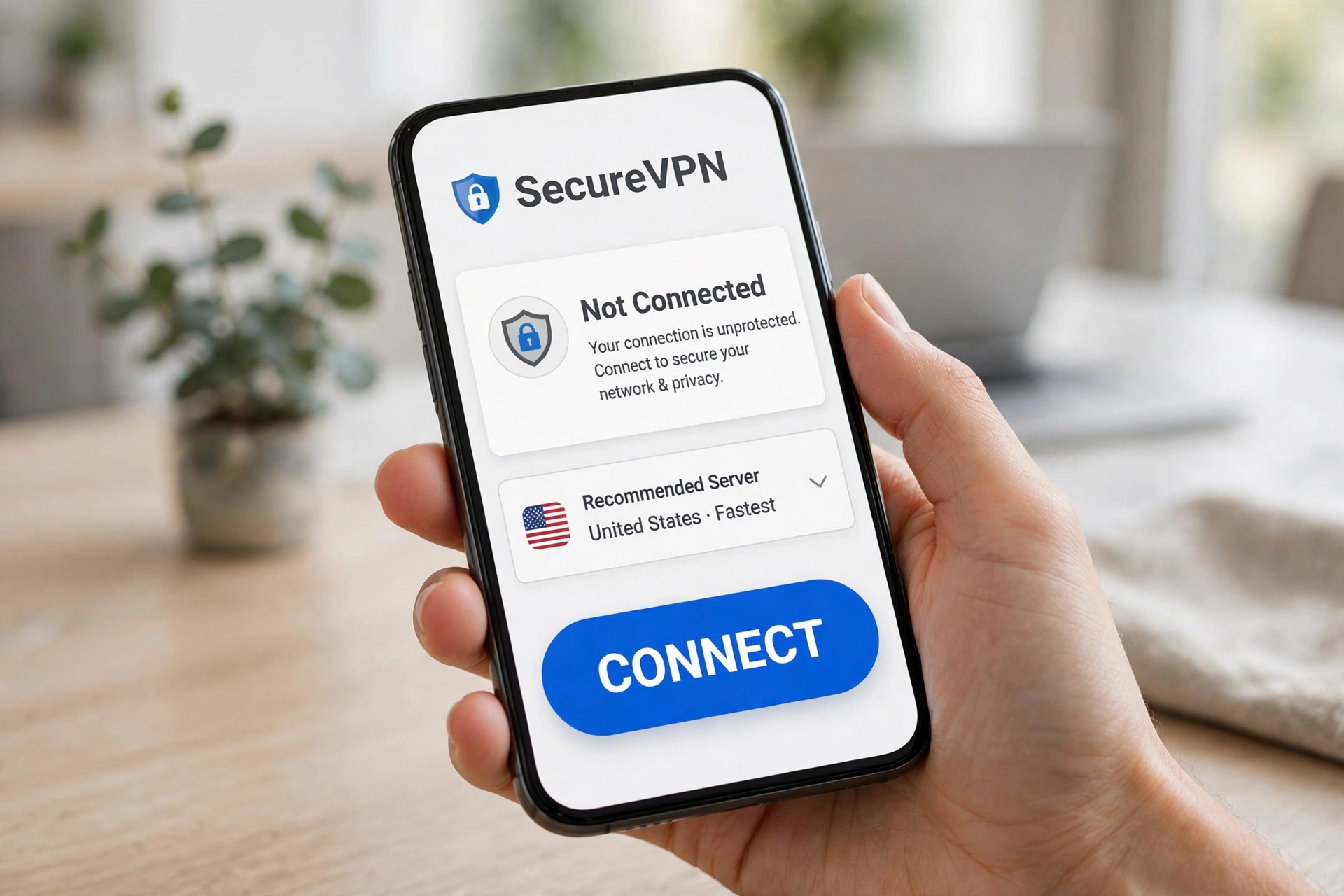
This is the full method for how to use a vpn. It works on phone and laptop. Read the steps once, then start.
Step 1: Pick a Trusted VPN App
Pick a VPN app from a trusted maker, like NordVPN, ExpressVPN, Surfshark, or Proton VPN. Read reviews and check the price before you pick one. Avoid free VPN apps from ads, because some of them sell your data. Picking a trusted app is the first step to stay safe.
Step 2: Install the App and Make an Account
Download the VPN app from the official app store or the maker website. Install it, open it, and make an account with your email. Pick a plan if the app asks for one, and sign in. Do not download a VPN from a random website, because it could be fake.
Step 3: Pick a Server Location
Open the app and pick a server location from the list. Pick a server near you for the fastest speed. Pick a server in another country if you want to watch shows from that country. Picking the right server is a key part of getting good speed.
Step 4: Tap Connect and Wait
Tap the big Connect button and wait a few seconds. The app will show a key icon or a “Connected” message when the VPN is on. Your internet now goes through the private tunnel. Tapping Connect is the heart of it every day.
Step 5: Test That the VPN Is Working
Open your browser and search for “what is my IP” to check your location. If the VPN works, the page will show the server location you picked, not your real city. If it still shows your real city, turn the VPN off and on again, or pick another server. Testing is a key part of trusting the app.
Step 6: Turn On Kill Switch and Auto Connect
Open the VPN settings and turn on Kill Switch, which blocks the internet if the VPN drops. Also turn on Auto Connect, so the VPN turns on by itself on public WiFi. These two settings keep you safe even if you forget to turn the VPN on. This step is a key part of staying safe.
Step 7: Use the Internet as Normal
Use your phone or laptop as normal. The VPN runs in the background and protects your data. When you are done, tap Disconnect in the app. These small steps are the last step, from start to finish.
How to Use a VPN on iPhone
Setting up a VPN on iPhone is easy. Here is how to use a vpn on iPhone.
- Download a trusted VPN app from the App Store.
- Open the app, make an account, and sign in.
- Allow the app to add a VPN profile when it asks.
- Pick a server location and tap Connect.
- You will see a VPN icon at the top of your screen when it is on.
That is how to use a vpn on iPhone. You can also set up a VPN by hand: go to Settings, then General, then VPN and Device Management, then Add VPN Configuration, and type in the server details from your VPN maker. If you wonder how to turn on vpn on iPhone fast, open the app and tap Connect, or use the VPN toggle in Settings.
How to Use a VPN on Android

Setting up a VPN on Android is just as easy. Here is how to use a vpn on Android.
- Download a trusted VPN app from the Google Play Store.
- Open the app, make an account, and sign in.
- Allow the app to set up a VPN connection when it asks.
- Pick a server location and tap Connect.
- You will see a key icon in the top bar when the VPN is on.
That is how to use a vpn on Android. If you wonder how to use a vpn on phone when you travel, turn on Auto Connect, so the VPN starts by itself on hotel and airport WiFi. That setting is part of how to use a vpn on phone safely. How-To Geek’s guide to using a VPN on Android shows the same download, sign in, and Connect steps.
How to Use a VPN on Windows
Setting up a VPN on Windows is easy too. Here is how to use a vpn on Windows.
- Download the VPN app from the maker website.
- Install the app, open it, and sign in.
- Pick a server location and click Connect.
- You will see a “Connected” message in the app when it is on.
- Turn on Kill Switch and Auto Connect in the settings.
That is how to use a vpn on Windows. If you want to know how to use a vpn on PC for work, pick a server near your office for the fastest speed, and keep the VPN on all day.
How to Use a VPN for Netflix

A VPN can help you watch shows from other countries. Here is how to use a vpn for Netflix.
- Open your VPN app and pick a server in the country you want.
- Tap Connect and wait for the “Connected” message.
- Open Netflix and search for the show you want.
- If Netflix shows an error, clear your browser data or try another server in the same country.
- Pick a VPN that works well with Netflix, because not all VPNs do.
That is how to use a vpn for Netflix. If you wonder how to set up a vpn for streaming, pick a fast server near you, and use a wired connection if you can, because that gives the best video quality.
Best VPN Settings: What to Use and What to Avoid
The best VPN settings keep you safe without slowing you down. Here is what to use and what to avoid.
Use: – A trusted paid VPN, for the best speed and safety – Kill Switch, to block the internet if the VPN drops – Auto Connect, to turn the VPN on by itself on public WiFi – A server near you, for the fastest speed – A strong password and two factor auth, for your VPN account
Avoid: – Free VPN apps from ads, which can sell your data – Using a VPN for illegal downloads, which is against the law – Turning off Kill Switch, which leaves you unprotected – Picking a far away server, which makes your internet slow – Sharing your VPN account with strangers
If you are not sure about a VPN, check reviews on a trusted tech site first. That check is a smart step in how to use a vpn with the right settings. A good VPN is one you trust, with a clear no logs policy.
Mistakes to Avoid When You Use a VPN
Many people make these mistakes when they start with a VPN. Avoid them and your internet will stay safe.
- Using a free VPN from an ad, which can sell your data
- Forgetting to turn the VPN on before you use public WiFi
- Turning off Kill Switch, which leaves you unprotected
- Picking a far away server, which makes your internet slow
- Thinking a VPN makes you fully anonymous, when it does not
- Using a VPN to break the law, which is never safe
How to Use a VPN: Quick Checklist
Use this checklist every time you use a VPN.
- Pick a trusted VPN app and install it.
- Make an account and sign in.
- Pick a server location near you.
- Tap Connect and wait for the “Connected” message.
- Test your IP to check the VPN is working.
- Turn on Kill Switch and Auto Connect.
- Use the internet as normal, then tap Disconnect when done.
Frequently Asked Questions
Is it safe to use a VPN?
Yes, it is safe to use a VPN from a trusted maker. If you ask is a vpn safe, the answer is yes when you pick a trusted maker. A good VPN hides your internet activity and keeps your data safe on public WiFi. Avoid free VPN apps from ads, because some of them sell your data. Pick a VPN with a clear no logs policy.
What does a VPN do?
A VPN hides your IP address and sends your internet traffic through a private tunnel. This stops people on the same WiFi from seeing what you do, and it lets you watch shows from other countries. A VPN does not make you fully anonymous, and it does not protect you from malware.
How do I turn on a VPN?
Open your VPN app, pick a server location, and tap Connect. On iPhone, you can also turn it on in Settings, then General, then VPN. On Android, you will see a key icon in the top bar when the VPN is on.
Can I use a VPN on my phone and laptop at the same time?
Yes, most VPN apps let you use the same account on many devices at once. Install the app on your phone and laptop, sign in with the same account, and connect on both. Check your plan to see how many devices it covers.
Will a VPN slow down my internet?
Yes, a VPN can slow your internet a little, because your traffic goes through an extra server. Pick a server near you for the fastest speed, and use a paid VPN, which is faster than most free VPNs. If your internet is very slow, try another server.
Is a VPN legal?
Yes, using a VPN is legal in most countries, including the USA. A VPN is a tool for privacy and safety. Using a VPN to break the law is still illegal, so use it the right way.
Related Guides You May Like
If you liked this guide, try these easy guides from Daily Life Hacks. Learn how to remove malware to clean any device, see how to reset router to fix slow WiFi, read how to format a usb drive to clean up your drive, check how to remove duplicates in Excel to keep your data clean, and see how to clean a whiteboard when your board gets stained. You can also read how to polish shoes for a mirror shine on leather, learn how to clean dishwasher filter to keep your dishwasher working well, and see how to wash pillows to keep your bed fresh. Also read how to get water out of your ear, how to stop coughing, how long does a root canal take, how much caffeine is too much, how to learn spanish fast, how to learn japanese, how to learn a new language, how to calculate gpa, how long have humans been on earth, how to practice spanish speaking, how to learn photography, how many states of united states, how many steps in a mile, how to make cold foam, why is my husband yelling at me, and what is a duvet cover. Also read how to fix printer streaks, how to iron a shirt, how to clean a blender, and how to reduce ping. Also read how to make tea, how to remove a splinter, how to clean a hairbrush, and my wife is yelling at me. Also read how many miles is a 5k. Also read how to stop spam emails, how to stop procrastinating, and how to prepare for a phone interview. Also read how to draw anime eyes. You can also browse all our Tech and Computers tips for more simple guides.
Final Thoughts
Learning how to use a vpn is easy once you know the golden rule: pick a trusted app, connect, and let it run. Turn on Kill Switch and Auto Connect, pick a server near you, and use the internet as normal. That is all it takes. Now that you know how to use a vpn the easy way, your internet will stay private and safe. Just remember to use a trusted VPN, turn it on before public WiFi, and keep your app updated. Once you learn how to use a vpn this way, you will never dread public WiFi again. Those three rules are the heart of how to use a vpn.
About the author
James Wilson writes about cars, tech, and the outdoors for Daily Life Hacks. He tests every tip on his own devices first, so you can trust that it works in real life. More from James Wilson, and see how to spot phishing emails, and see how to set up google alerts, and see how to change default browser to track news online to stay safe online


